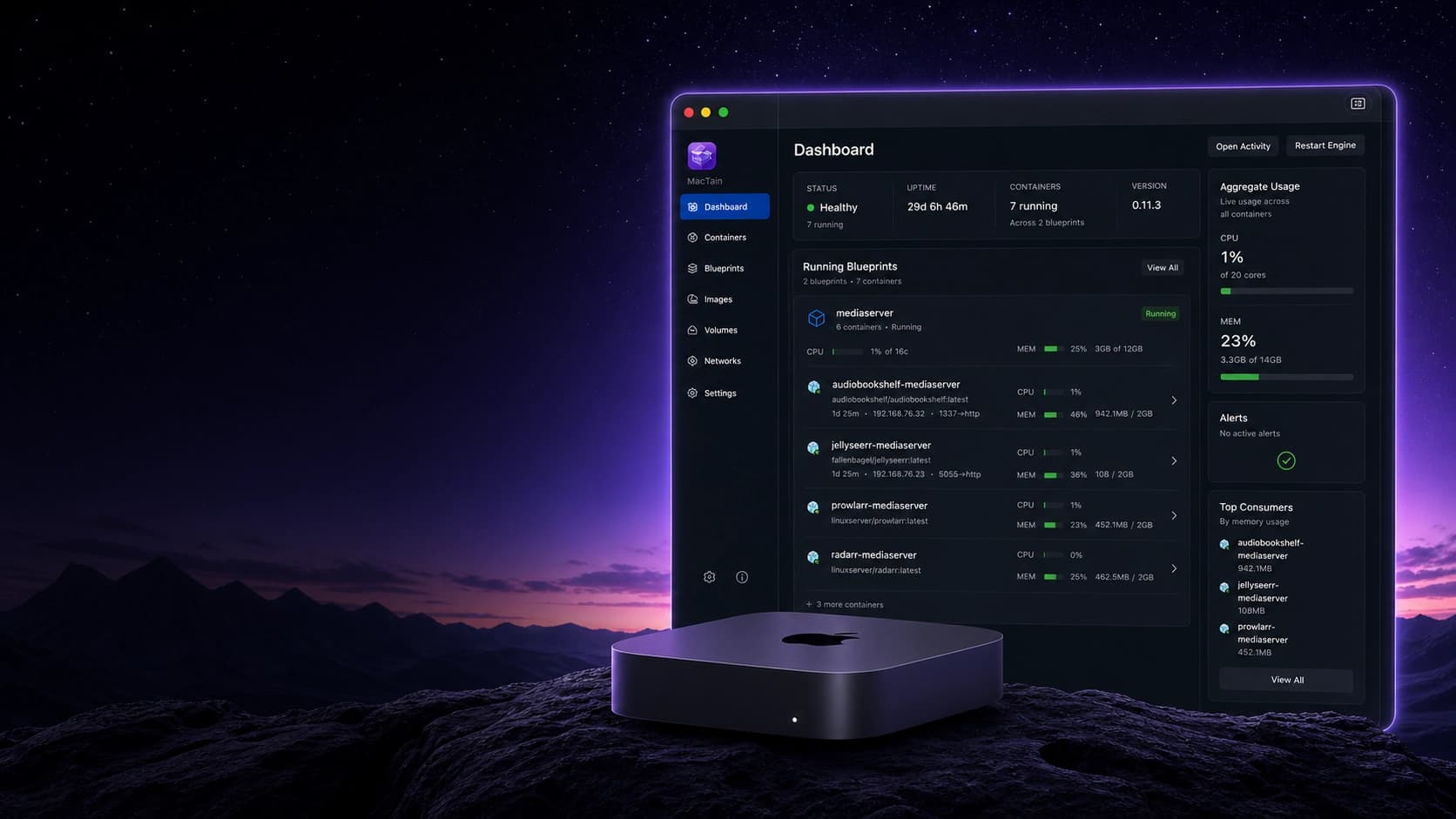

MacTain GUI
The MacTain app is the primary day-to-day interface for many users. It uses the same local Engine model as the CLI: containers, Blueprints, images, volumes, network scopes, registry credentials, and secrets are shared concepts rather than separate GUI-only objects.
Use the GUI when you want visual status, guarded forms, logs, file browsing, and repeatable actions. The screenshots below show the actual MacTain desktop surfaces used for the launch docs.
GUI Reference
| Area | What it is for | Common tasks | Related docs |
|---|---|---|---|
| Dashboard | A launch point for Engine health, runtime attention, active containers, and recent operations. | Check whether the Engine is reachable, retry Engine startup, install missing runtime assets, open container logs, and open container files. | Installation verification, Runtime assets, Troubleshooting |
| Menu Bar | A persistent macOS control center for common MacTain actions without opening the full app. | Check Engine health, open Dashboard, restart or start the Engine, open Blueprints or Settings, toggle Launch at Startup, review attention states, control pinned containers or Blueprints, stop all containers, open About, and quit MacTain. | Dashboard, Containers, Blueprints, Troubleshooting |
| Containers | Create, save, start, stop, restart, inspect, configure, and remove containers. | Define image, resources, port mappings, mounts, environment, secrets, labels, network scopes, restart behavior, and remove-after-stop behavior. | Containers, First container, Resource management |
| Container Logs | Inspect runtime output for a selected container. | Switch between live and persisted logs, choose container output or VM activity, search, pause following, copy, download, reload, and filter VM activity by channel or severity. | Containers, System utilities, Troubleshooting |
| Blueprints | Work with repeatable TOML app definitions. | Open and edit Blueprint TOML, use the TOML editor, validate settings, convert Compose input, start and stop Blueprint components, and review Blueprint activity. | Blueprints, Compose Converter |
| Images | Manage local and remote image workflows. | Pull images, inspect local images, tag, push, export, import OCI layouts, monitor image updates, and prune unused images. | Images, Build images, Registry credentials |
| Volumes | Manage durable container storage. | Create volumes, inspect usage, browse volume files, back up, restore, remove, and prune unreferenced volumes. | Volumes |
| Networks | Manage MacTain network scopes and memberships. | Create scopes, review scope health, attach standalone containers, and inspect Blueprint or container membership. | Networking |
| Settings > Registries | Store and test private registry credentials. | Add host-keyed credentials, test authentication, update credentials, and remove credentials. | Registry credentials, Images |
| Settings > Secrets | Manage reusable MacTain secrets. | Create secrets, update values, delete secrets, and attach existing secrets to containers or Blueprints. | Secrets, Blueprints |
| Settings > Image Policies | Control image pull and offline behavior defaults. | Review image policy settings before running workflows that depend on implicit pulls or offline behavior. | Images |
| Settings > Local Domains | Manage local container domain behavior. | Review resolver status and domain mappings when local hostnames do not resolve as expected. | Networking, System utilities |
| Settings > Storage | Review reclaimable local storage. | Inspect reclaimable usage and run guarded cleanup actions for unused images or volumes. | Resource management, System utilities |
| Settings > App Logs | Review MacTain diagnostic output. | View, copy, export, or open app logs in a detached window for support. | Troubleshooting |
| Account | Review access and subscription state. | Activate or restore access when the app reports an entitlement problem. | Support |
Screenshot Tour
Dashboard
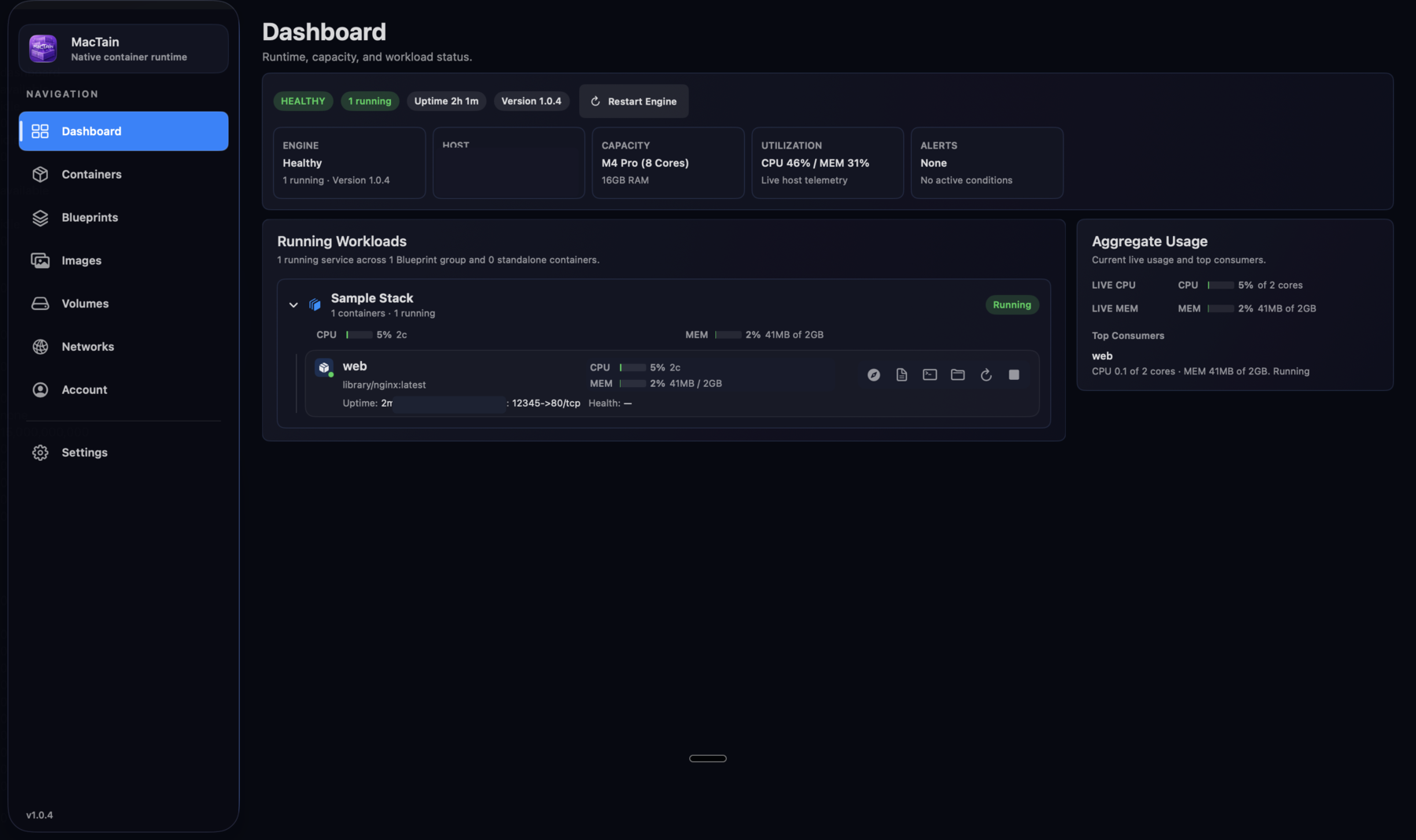
The Dashboard is the first stop after launch. It summarizes Engine health, runtime version, host capacity, live utilization, active alerts, running workloads, and the top CPU or memory consumers.
Use the Dashboard to confirm the Engine is available before creating containers or starting Blueprints. If runtime assets are missing or the Engine is blocked, the Dashboard is where MacTain surfaces the action that needs attention.
Menu Bar Control Center
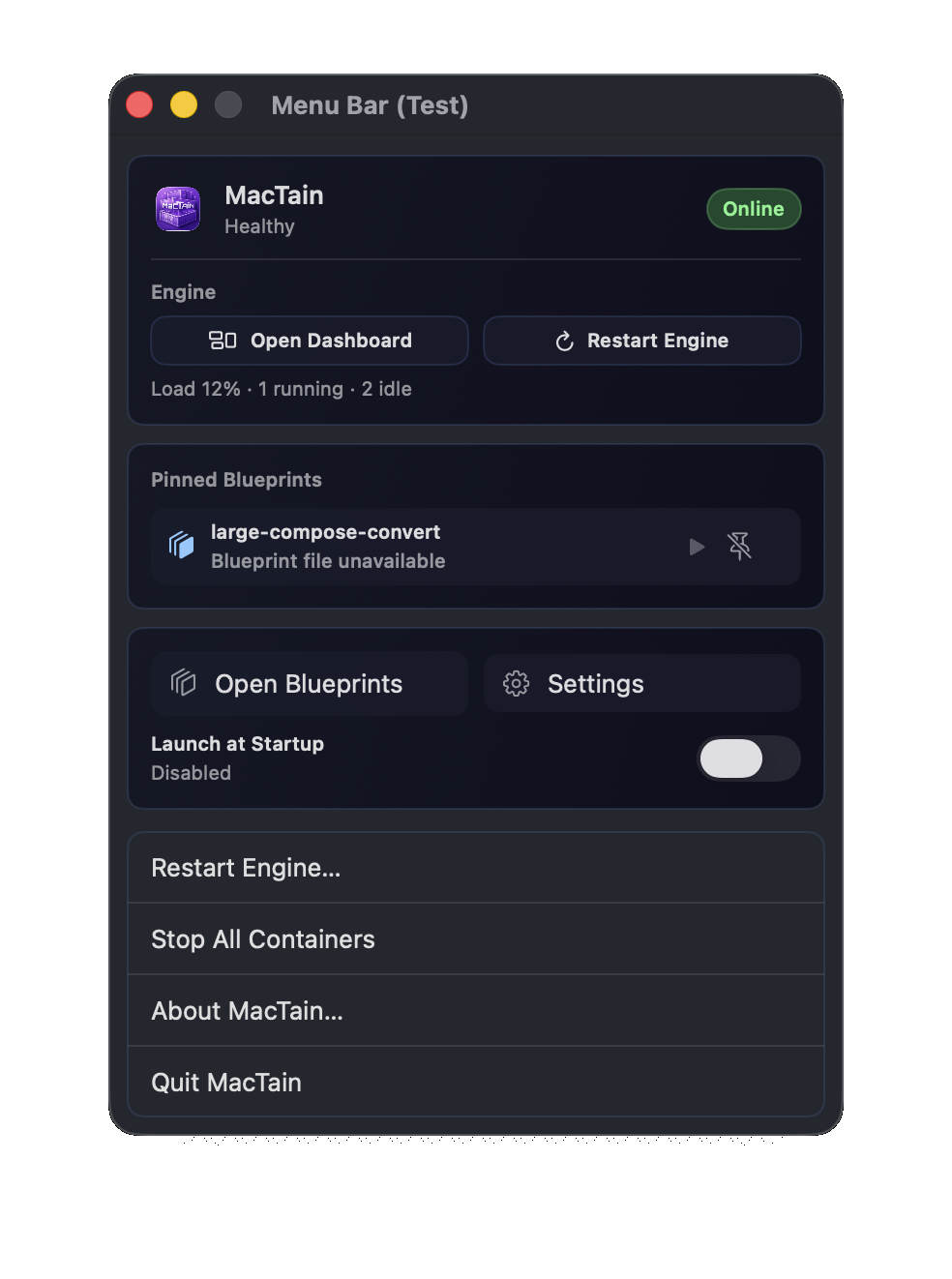
The menu bar control center keeps the common operational actions one click away. It shows Engine health, aggregate load, running and idle counts, pinned workload shortcuts, quick links, launch-at-startup state, and guarded utility actions.
Use the menu bar when you want to check MacTain without switching into the full app. The top Engine card opens the Dashboard or starts/restarts the Engine. The attention area appears when MacTain detects a blocking state such as Engine unavailable, a restart loop, a container error, or watched image updates.
Pinned containers and Blueprints are intentionally a short list, not a complete inventory. Pin the workloads you use often from the main app, then use the menu bar to open them, start or stop them, restart running containers, or unpin them. The menu bar also includes Open Blueprints, Settings, Launch at Startup, Stop All Containers, About MacTain, and Quit MacTain. Stop All Containers asks for confirmation and leaves the Engine running.
Containers
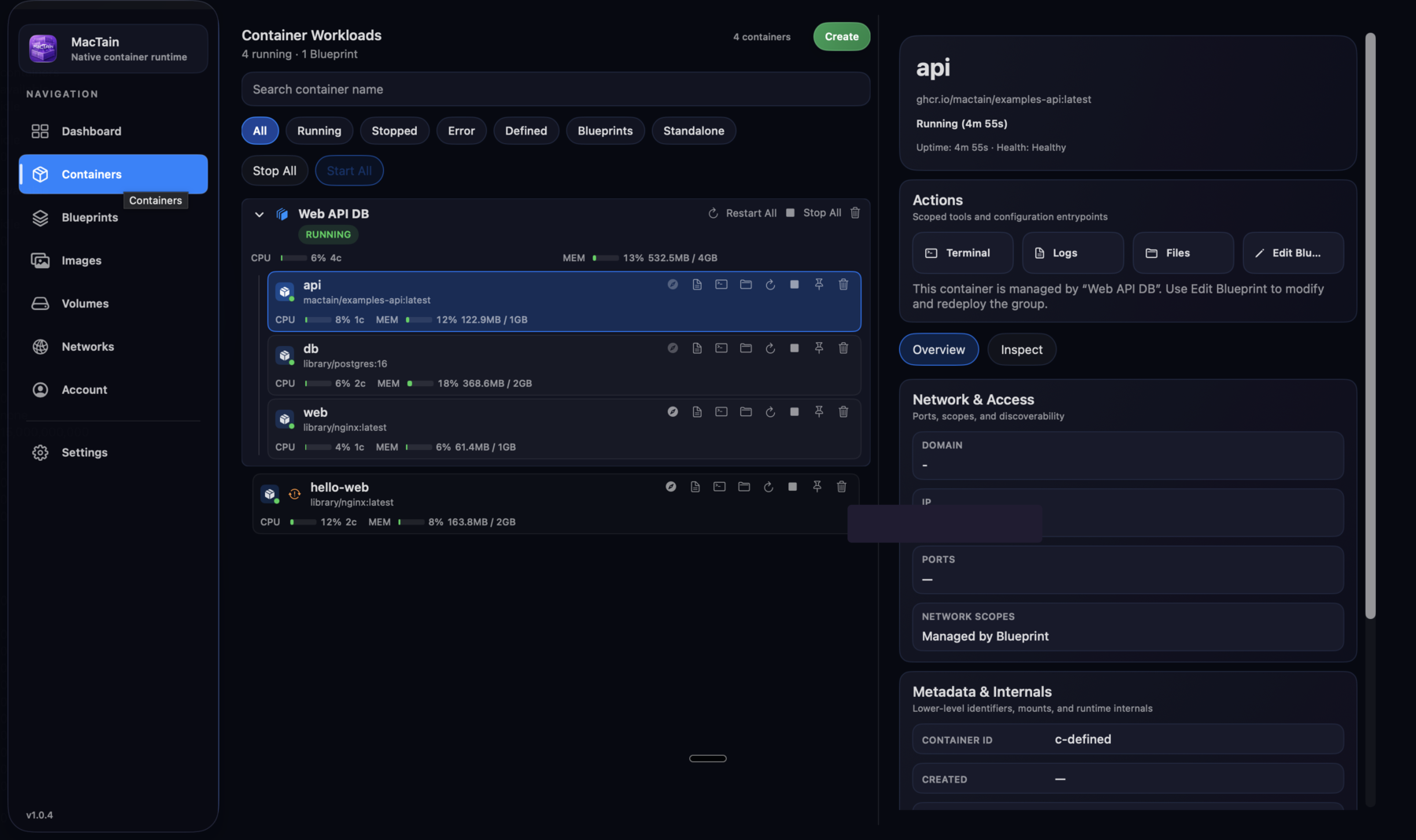
The Containers view keeps standalone containers and Blueprint-managed containers in one inventory. Filters separate running, stopped, defined, Blueprint-managed, and standalone workloads while the details pane exposes logs, terminal, files, settings, networking, and metadata.
Use this view after creating a container to confirm it is running, review CPU and memory use, open logs, browse files, attach a terminal, edit settings, or remove the definition. For Blueprint-managed rows, use the Blueprint controls when the whole stack should be restarted or stopped together.
Container Settings
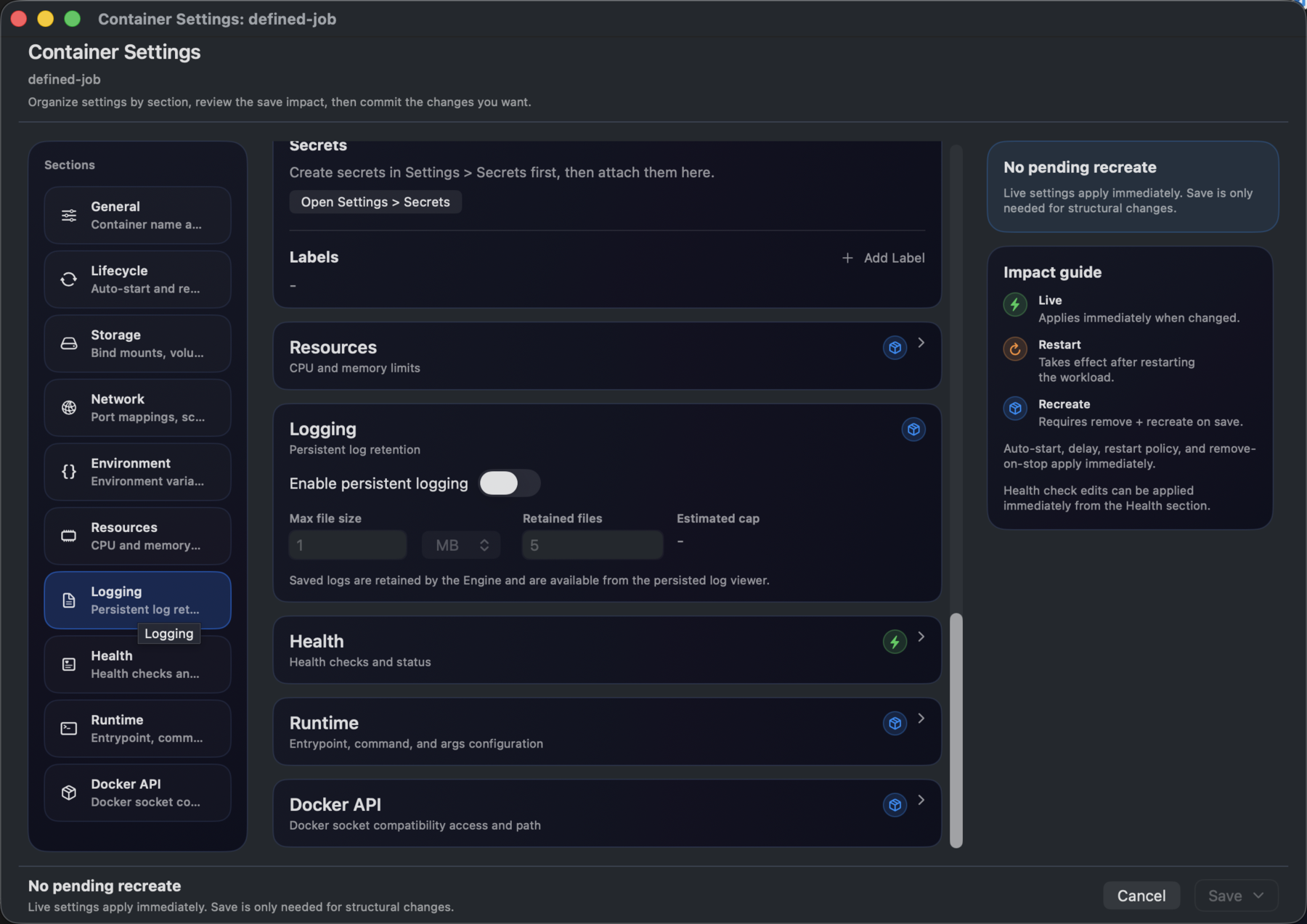
Container Settings is the dedicated configuration surface for an existing container. The left rail groups settings by General, Lifecycle, Storage, Network, Environment, Resources, Logging, Health, Runtime, and Docker API.
Use Container Settings when a saved container needs to change after it has already been defined. The right rail explains whether the current edits apply live, after restart, or require remove-and-recreate. That distinction matters because changing labels or logging can often be applied directly, while image, runtime, mount, port, and resource changes may require a restart or recreate.
Container And VM Logs
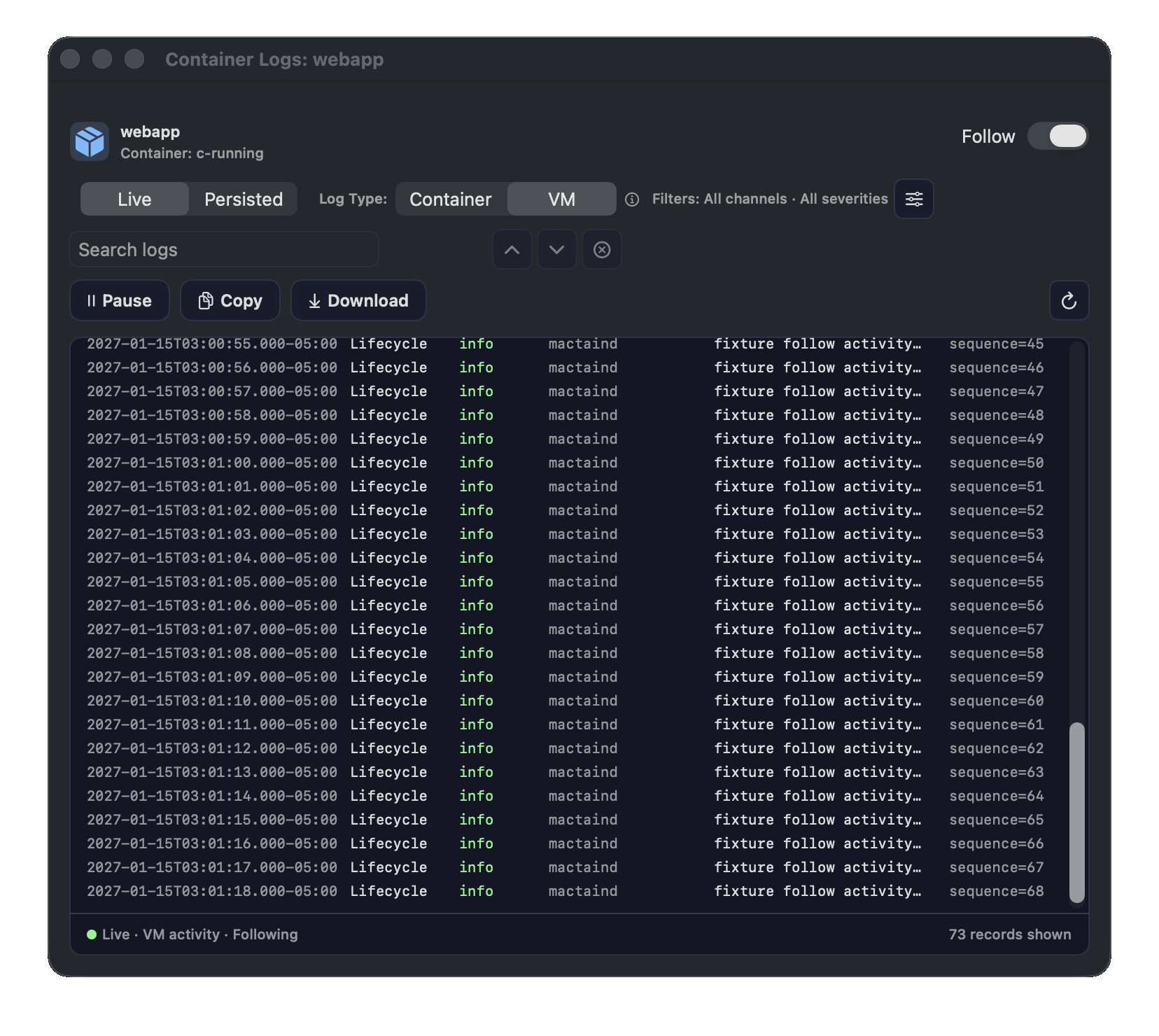
The Container Logs window separates application output from lower-level VM activity. Use Container for stdout and stderr from the workload, and use VM when you need Engine or virtual-machine activity around startup, networking, lifecycle, console, or resource events.
Open logs from a container row, the container details pane, or Dashboard workload actions. Use Live when the container is running and you want to watch new lines arrive. Use Persisted when retained logs are enabled and you need to inspect current or rotated log files after a restart or exit.
The same window supports search, previous/next match navigation, pause/resume for live follow, copy, download, reload, and VM activity filters. VM activity filters help narrow noisy infrastructure logs by channel and severity before sharing a support excerpt.
Blueprints
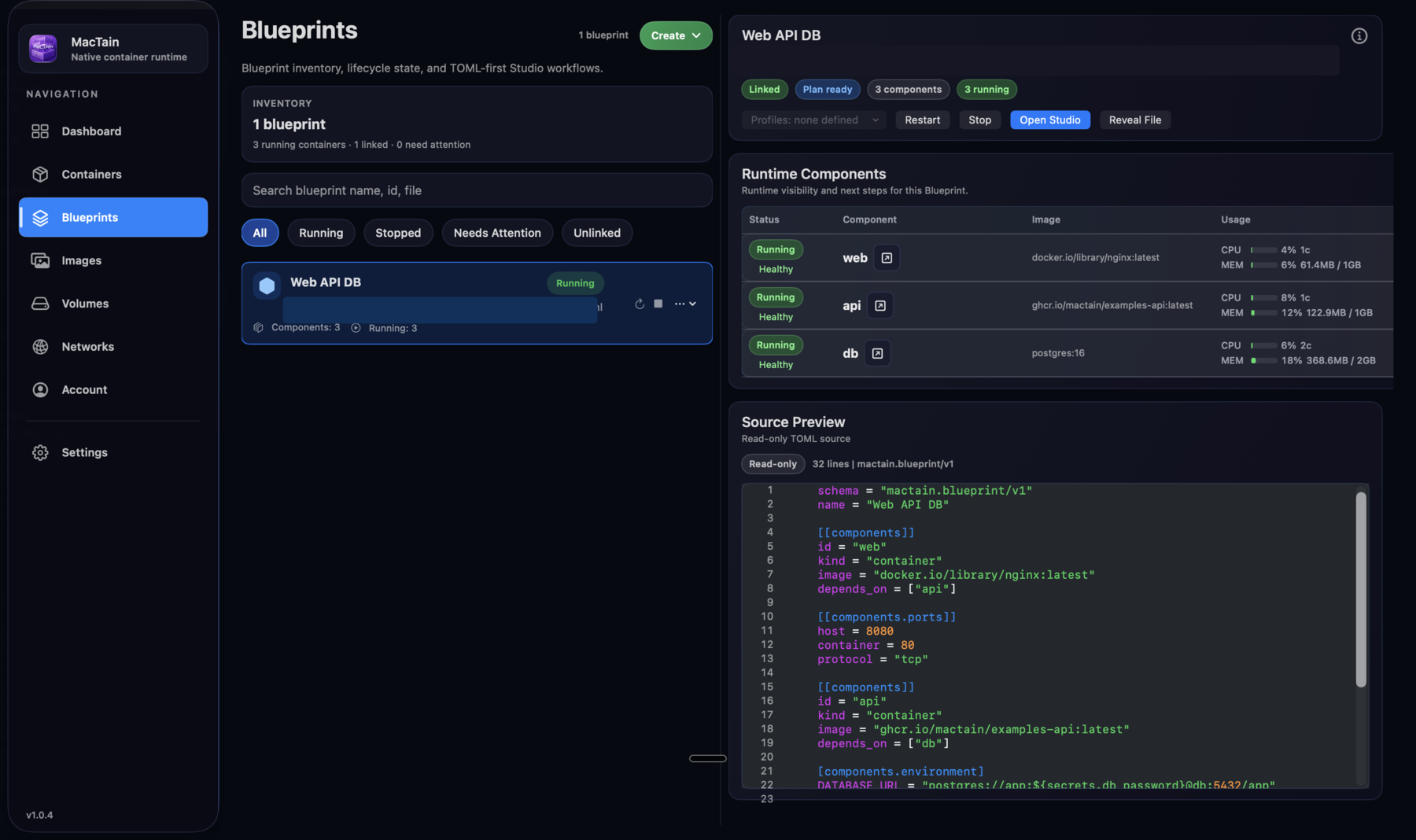
The Blueprints view treats the TOML file as the source of truth. The
selected Web API DB stack shows linked-file state, runtime status for
web, api, and db, lifecycle actions, and a read-only TOML preview.
Use this view when multiple containers need to be edited, validated, started, stopped, and inspected together. Open Studio to edit the TOML, then start or restart the Blueprint when the definition is ready.
Blueprint Studio And Builder Blocks
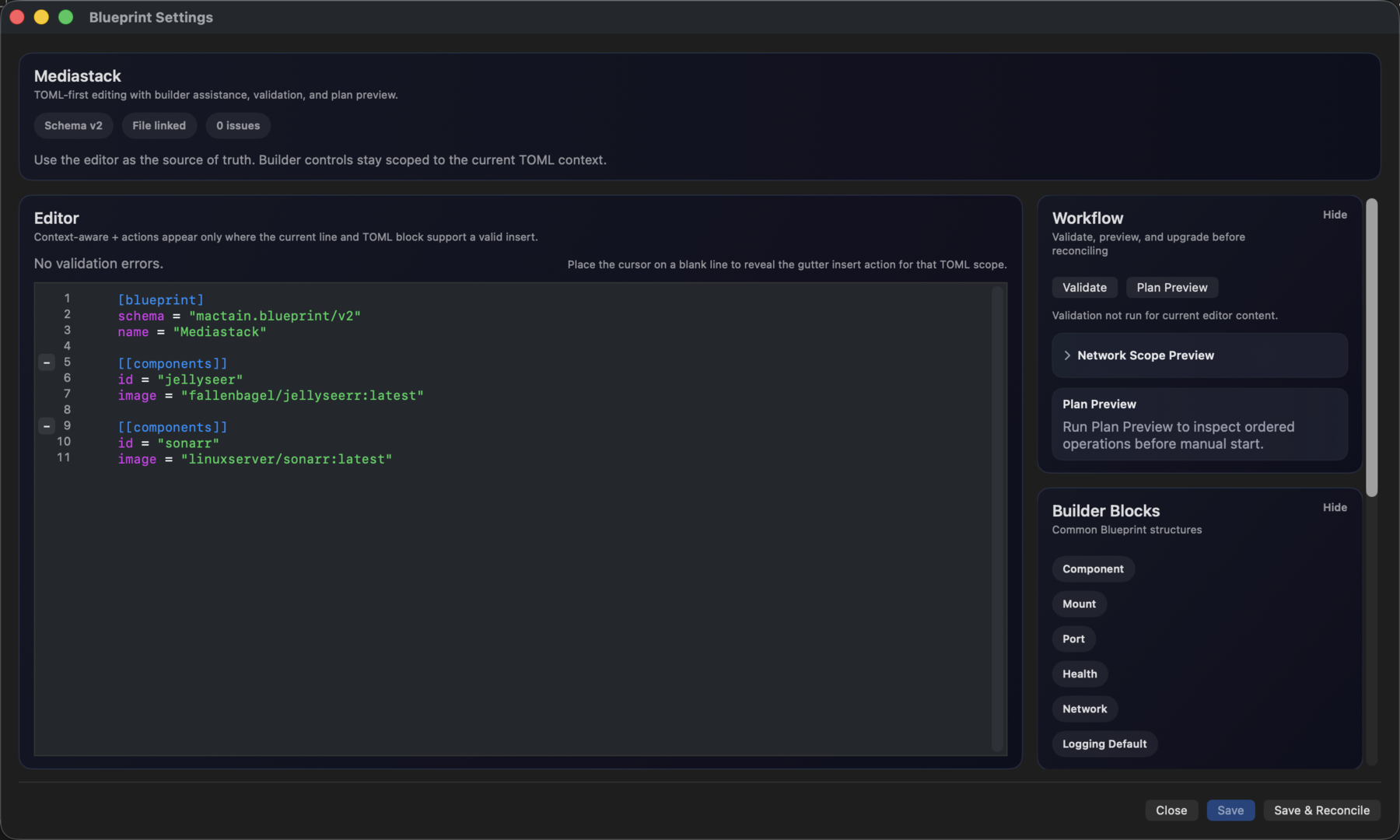
Blueprint Studio is the guarded editing surface for Blueprint TOML. The editor remains the source of truth, while the Workflow panel validates and previews changes and Builder Blocks insert common TOML structures for the current context.
Use Builder Blocks when you need to add a common section without memorizing the full TOML shape. Place the cursor in the Blueprint TOML where the new structure belongs, choose a block such as Component, Mount, Port, Health, Network, or Logging Default, then edit the inserted values. Validate the Blueprint before saving, and use Plan Preview when you want to inspect the ordered operations MacTain will reconcile.
Images
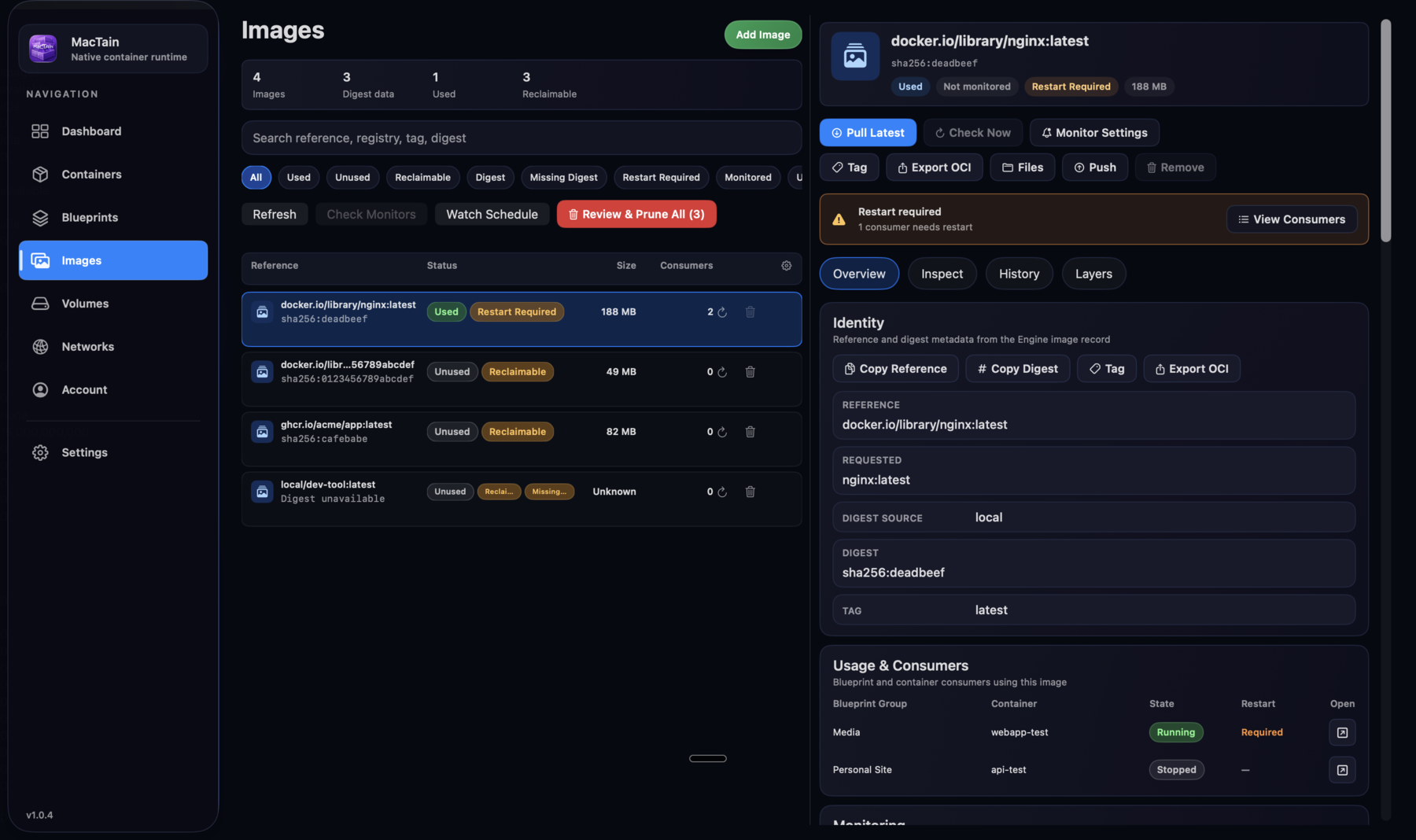
The Images view is the local image inventory. It shows pulled images, tags, digests, platform data, usage state, update monitoring, and image actions such as pull, inspect, tag, push, export, import, and prune.
Use Images before starting private or large workloads to confirm that required images exist locally, to pull a missing image, or to clean unused image storage after experiments.
Image Monitoring Schedule
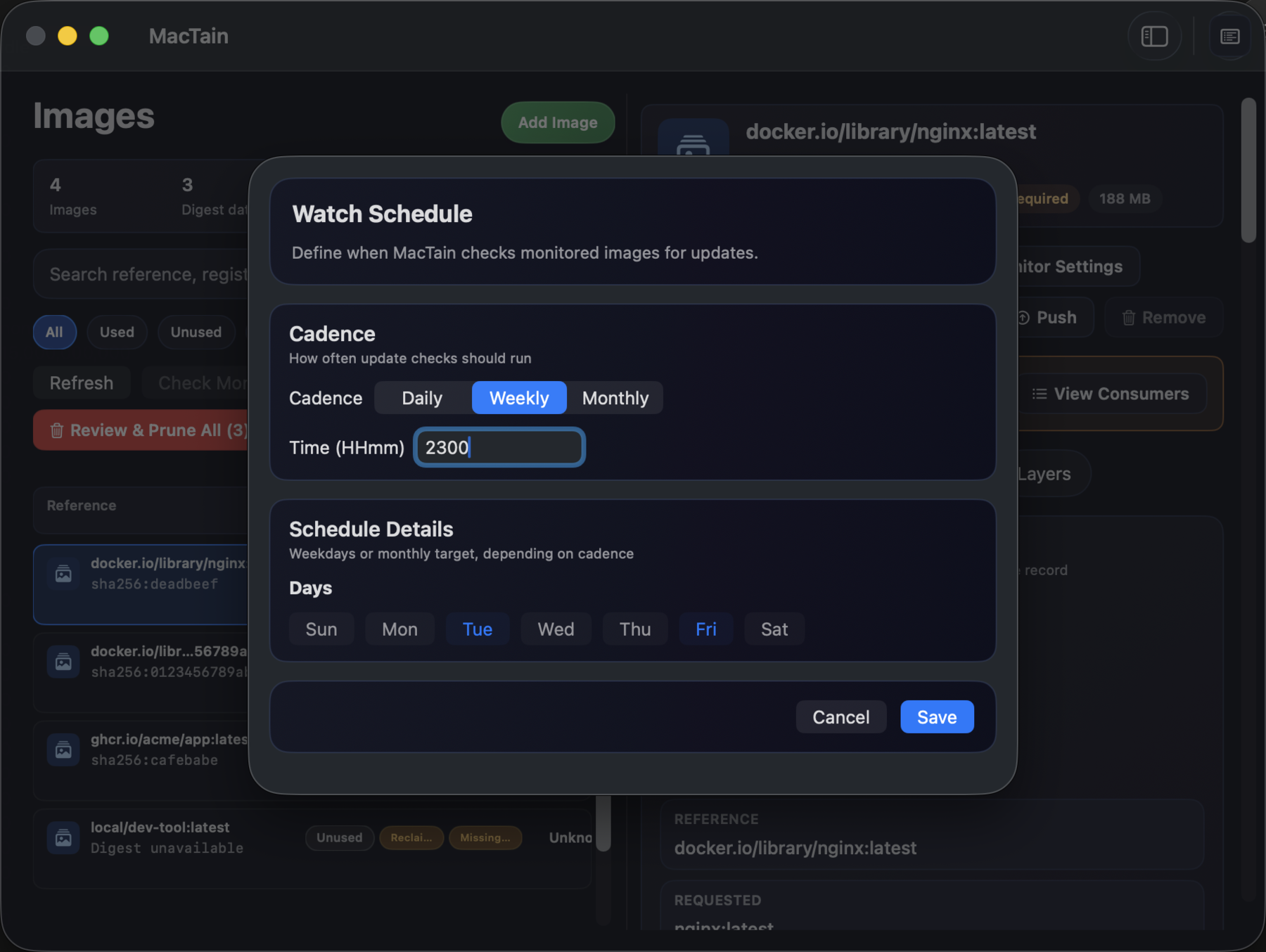
Image monitoring can run on a schedule instead of requiring manual pull checks. The schedule defines how often MacTain checks monitored images and when the checks should run.
Use the schedule when you want MacTain to watch local images for newer remote digests. Weekly or daily checks are the practical defaults for long-running home and development services because they avoid surprise updates while still surfacing stale images.
Per-Image Monitoring And Restart Logic
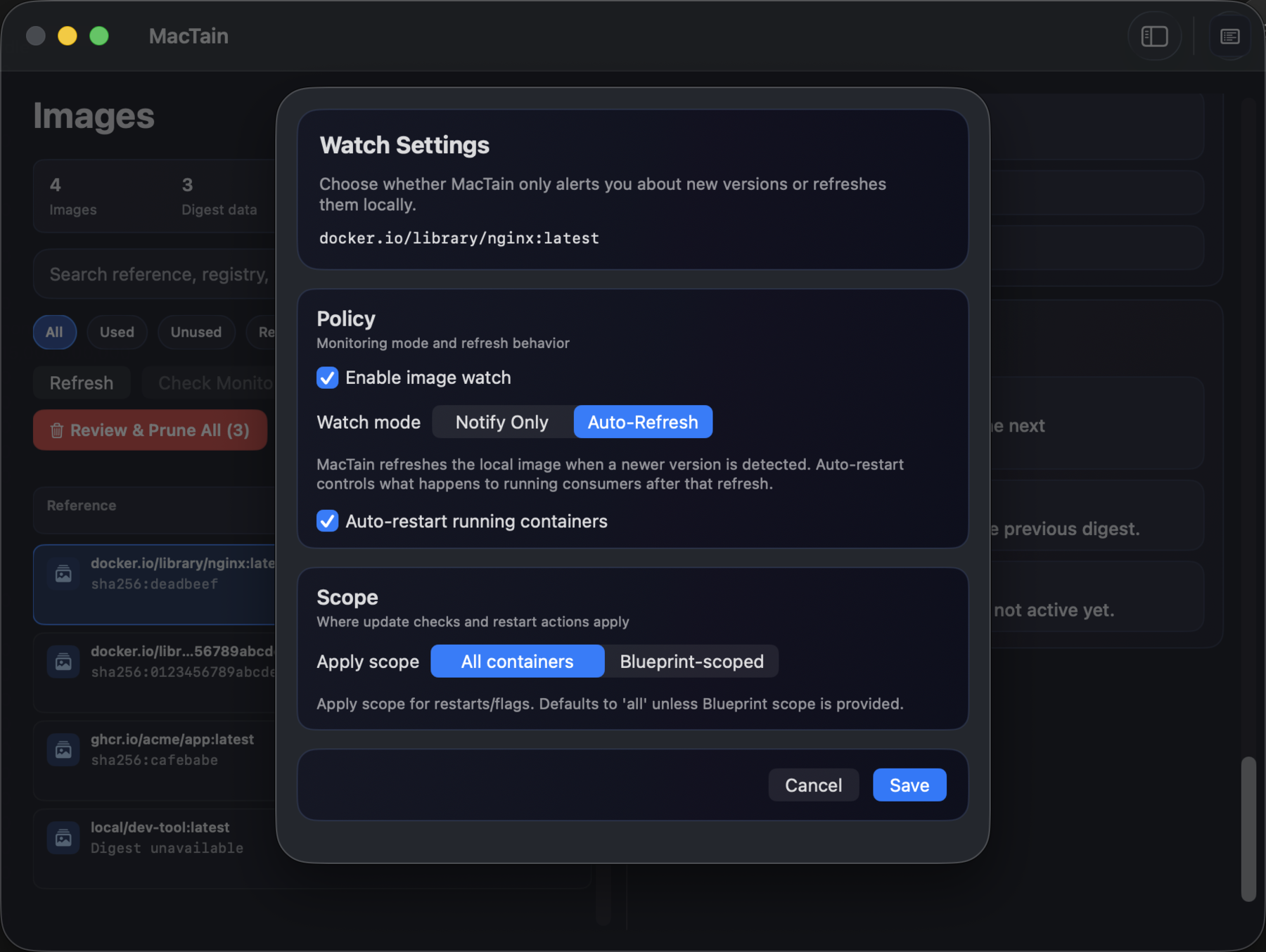
Per-image monitoring controls what MacTain should do when a watched image changes. Auto refresh updates the local image, and auto restart lets MacTain restart affected containers after the refresh.
Use per-image monitoring for images that back services you keep running, such as reverse proxies, web apps, or supporting databases. Leave auto restart off when you want to review updates before touching workloads. Enable auto restart when the image is safe to roll forward automatically and the affected containers should pick up the new digest without a manual restart.
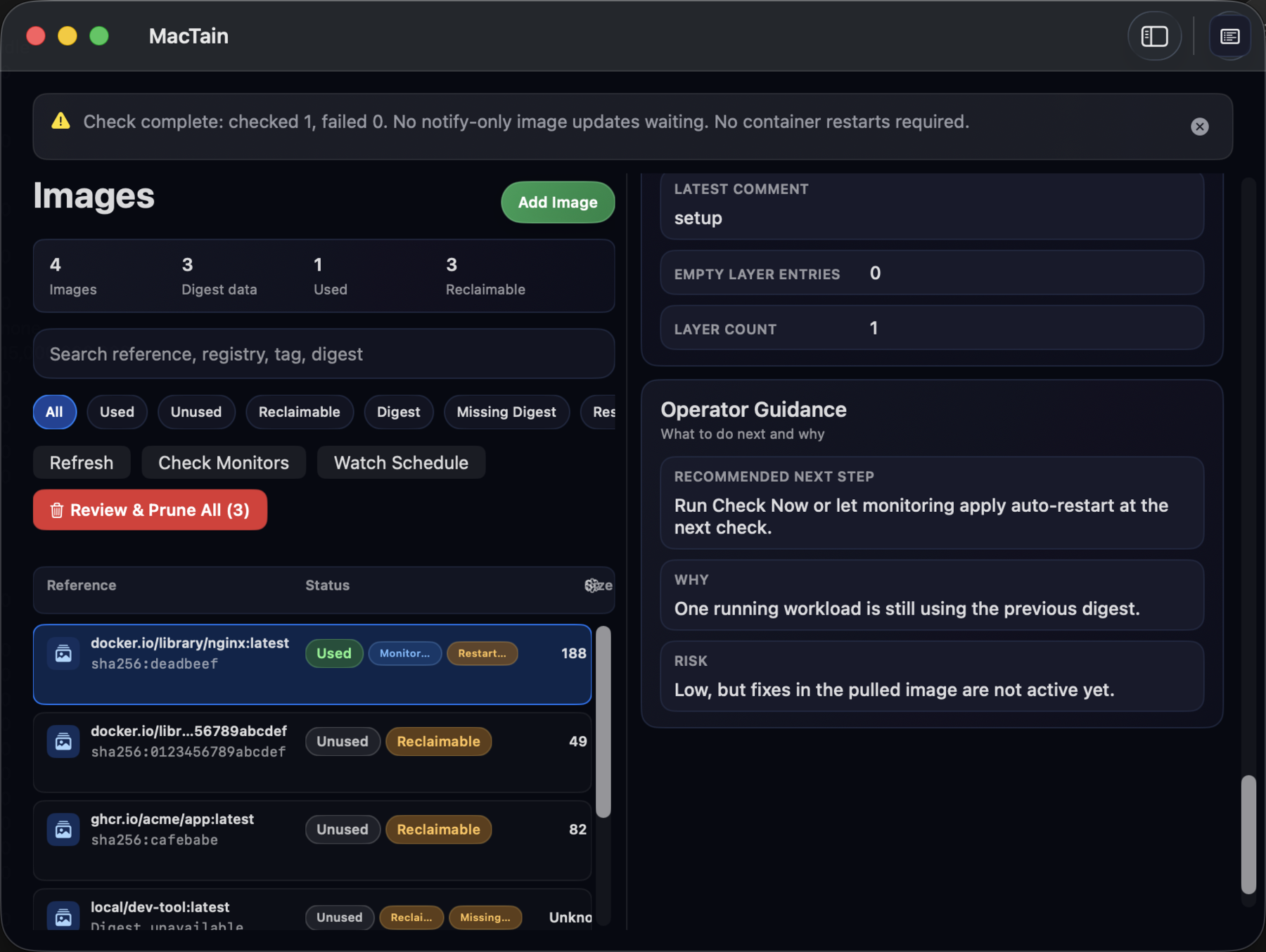
Check Now runs the same monitoring logic immediately and reports how many images were checked and whether any checks failed.
Use Check Now after changing monitoring settings, adding registry credentials, or before a maintenance window where you want to refresh and restart monitored workloads deliberately.
Volumes
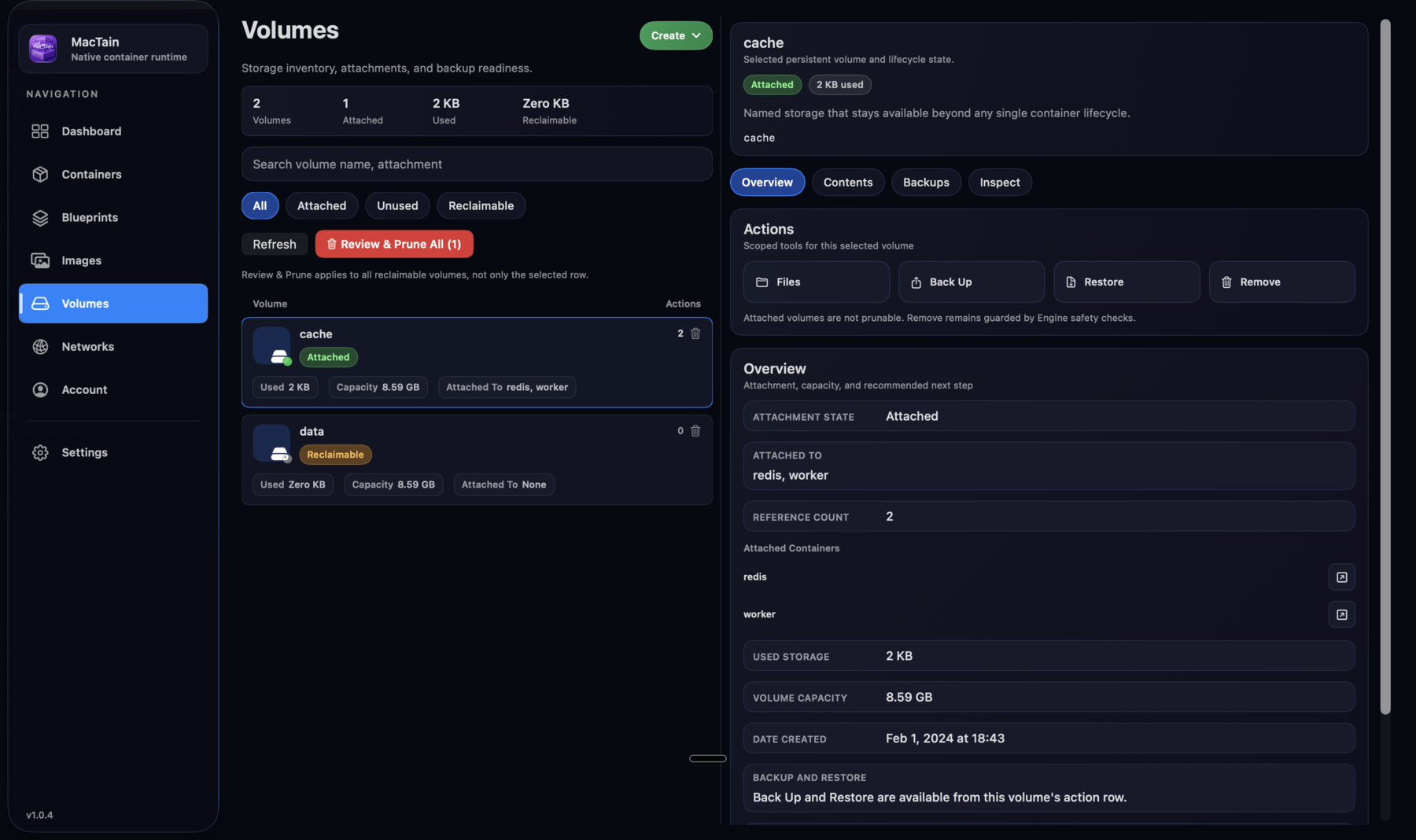
The Volumes view manages durable storage owned by MacTain. It separates named volumes from bind mounts and exposes attachment state, usage, backup, restore, remove, and prune workflows.
Use Volumes for data that should outlive a container definition, such as database data or application state. Check attachment state before pruning so you do not remove storage still needed by a service.
Backup And Restore
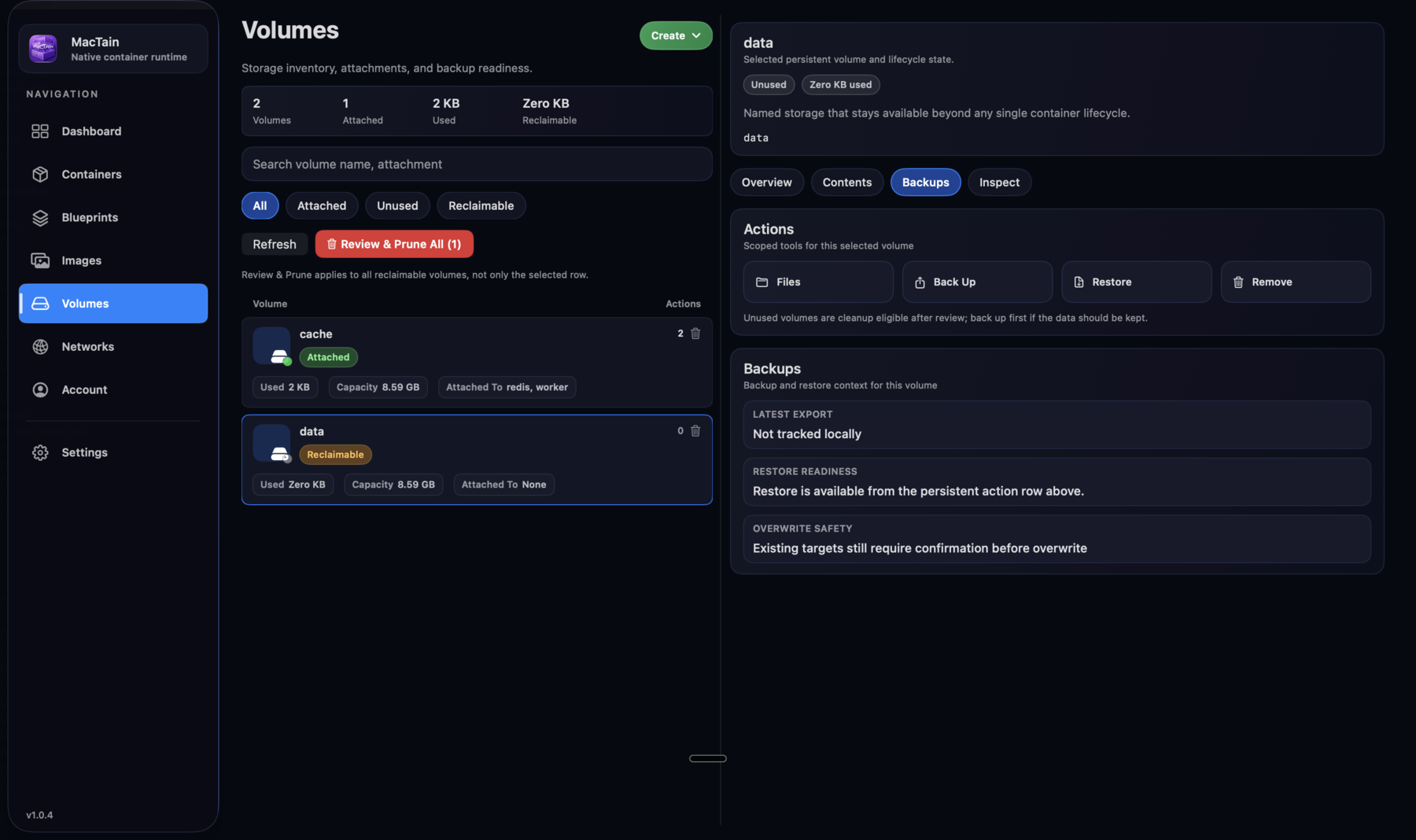
Volume backup and restore workflows live with the selected volume. MacTain summarizes the latest export, restore readiness, overwrite safety, and the backup restore path before you run a destructive storage action.
Use backup before replacing a container, testing a migration, or changing a Blueprint that owns durable state. Use restore when you need to recover a named volume from a previous export. Restore is intentionally guarded because it can overwrite current data; stop attached workloads first and confirm that the selected archive belongs to the volume you intend to replace.
Networks
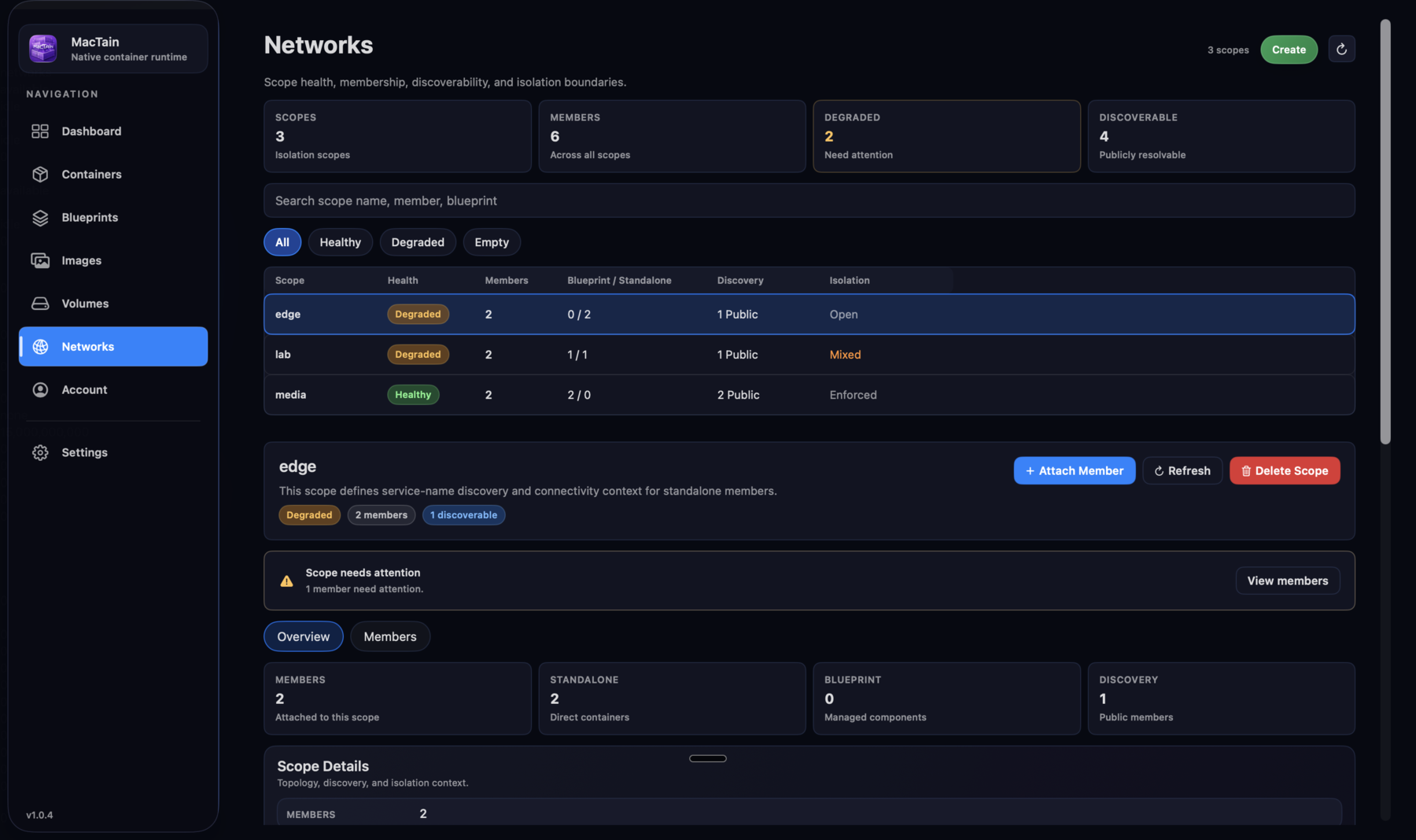
The Networks view explains scope health, membership, discoverability, and isolation boundaries. It shows whether a scope is healthy or degraded, how many members it has, and whether members are standalone containers or Blueprint-managed components.
Use Networks when a container needs to discover another container by service name, when a Blueprint should share connectivity with a standalone container, or when isolation matters and a workload needs a unique scope.
Account
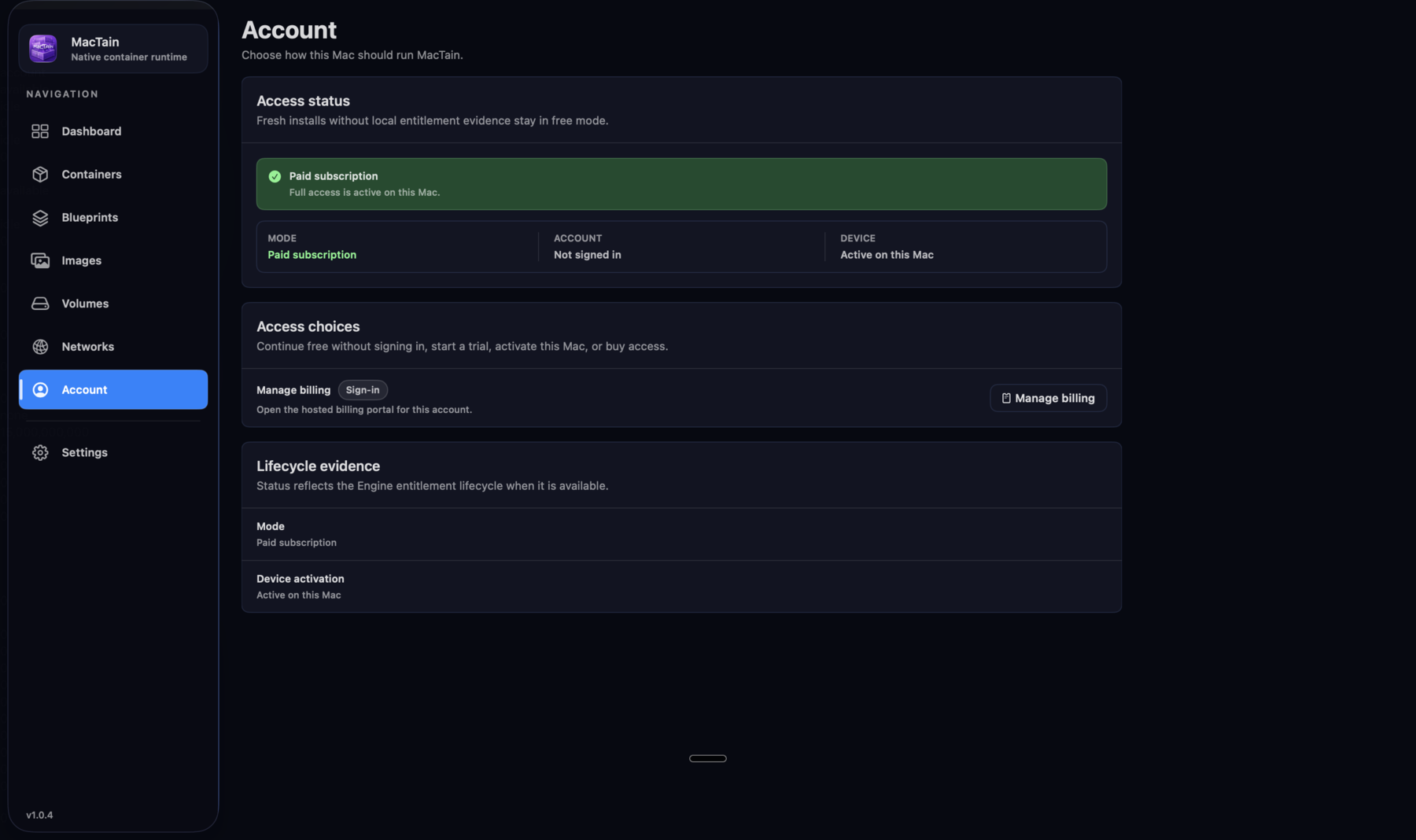
The Account view shows local entitlement state and the supported paths for activation, entitlement refresh, restore, and billing handoff.
Use Account when MacTain reports an access problem, when activation needs to be restored after reinstalling, or when support asks you to refresh entitlement state before retrying a gated action.
Settings
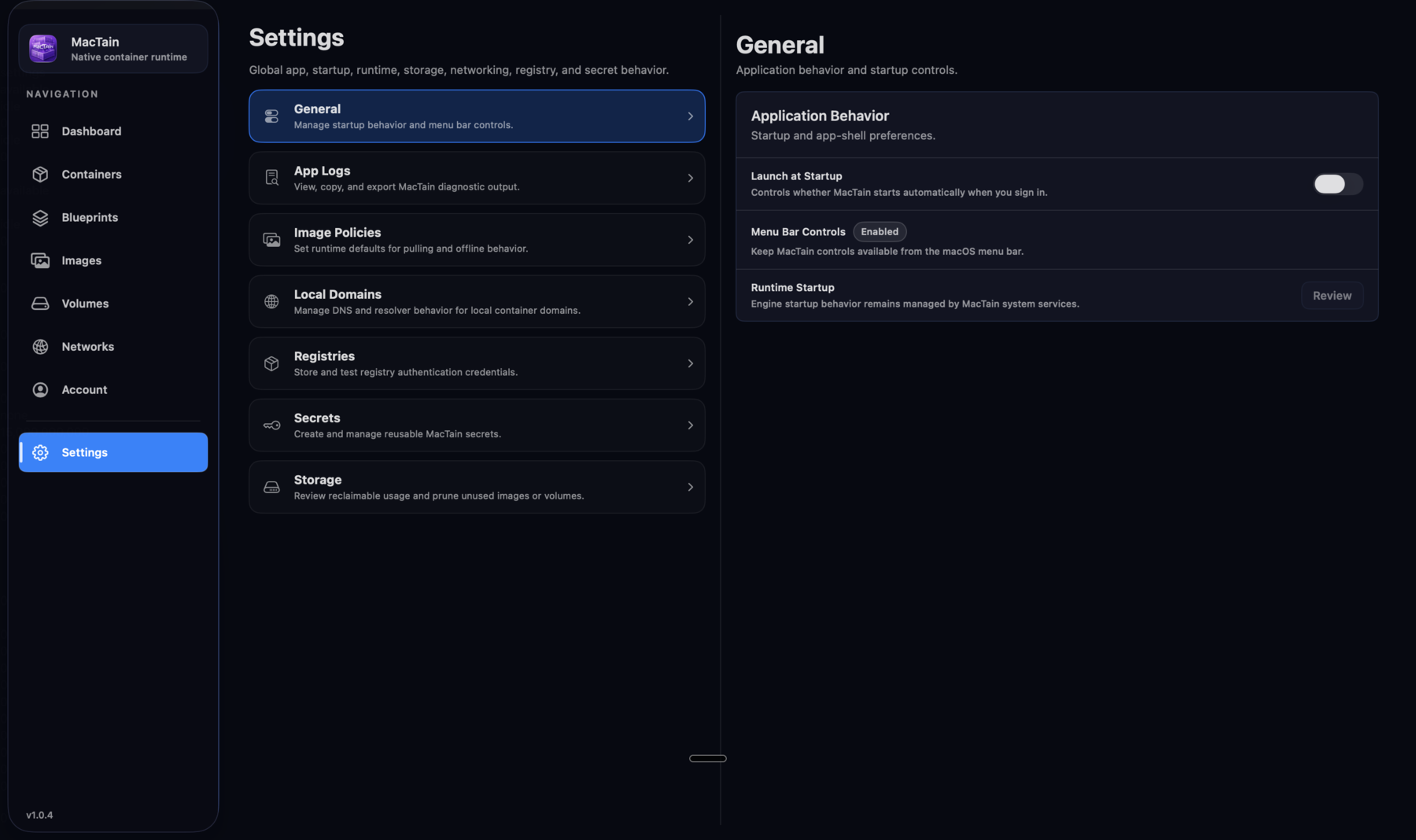
Settings centralizes app behavior and supporting services: startup and menu bar controls, diagnostic logs, image pull policy, local domain behavior, registry credentials, Keychain-backed secrets, and storage review.
Use Settings when you need to change global behavior rather than a single workload. Registry credentials and secrets belong here so containers and Blueprints can reference stored values without putting passwords, tokens, or private registry credentials in commands or TOML.
Settings: General
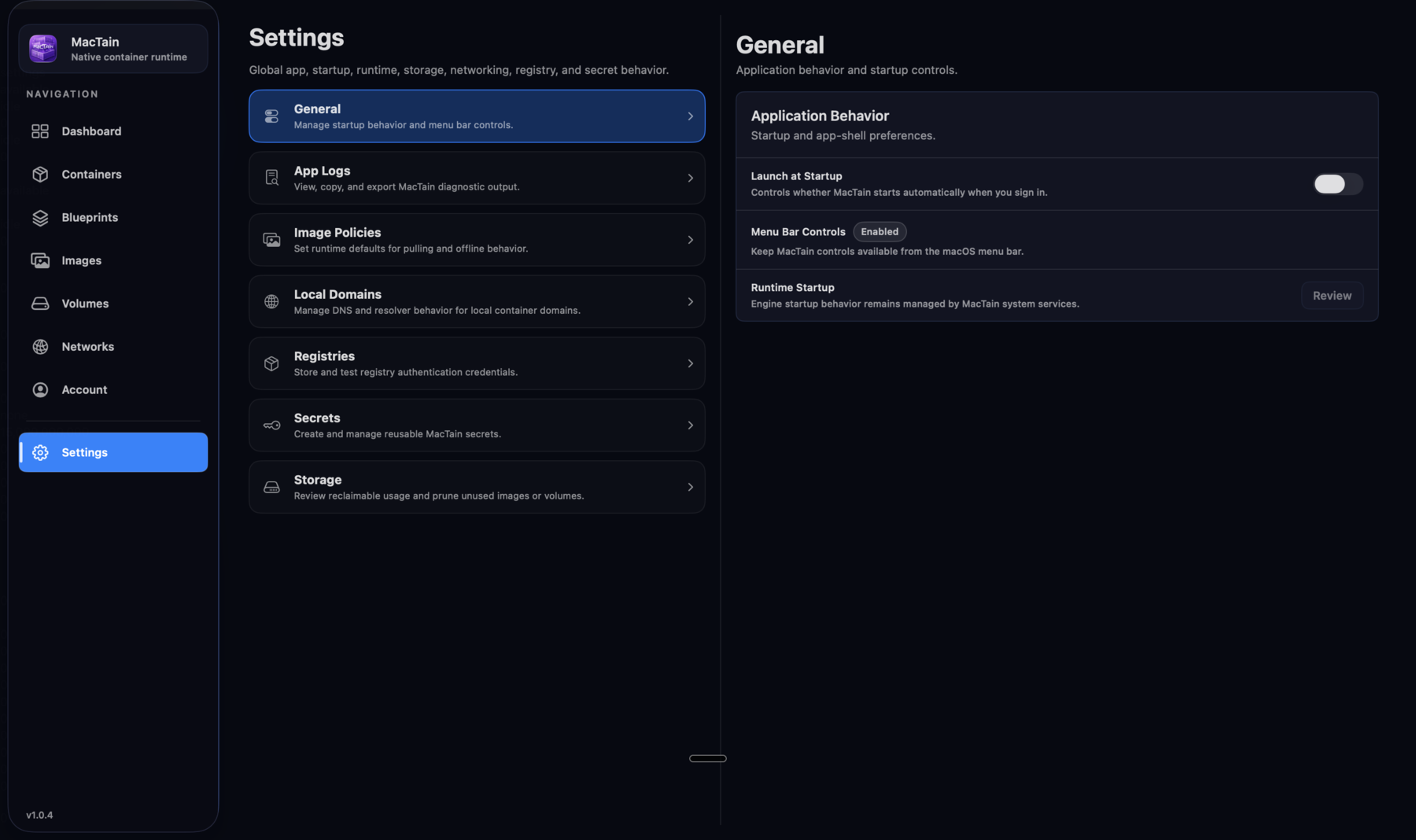
General settings control app-level behavior such as launch at startup, menu bar presence, foreground behavior, and quit flow preferences.
Use General when you want MacTain to behave like a persistent background tool or a manually launched app. These settings affect the desktop shell, not a single container.
Settings: App Logs
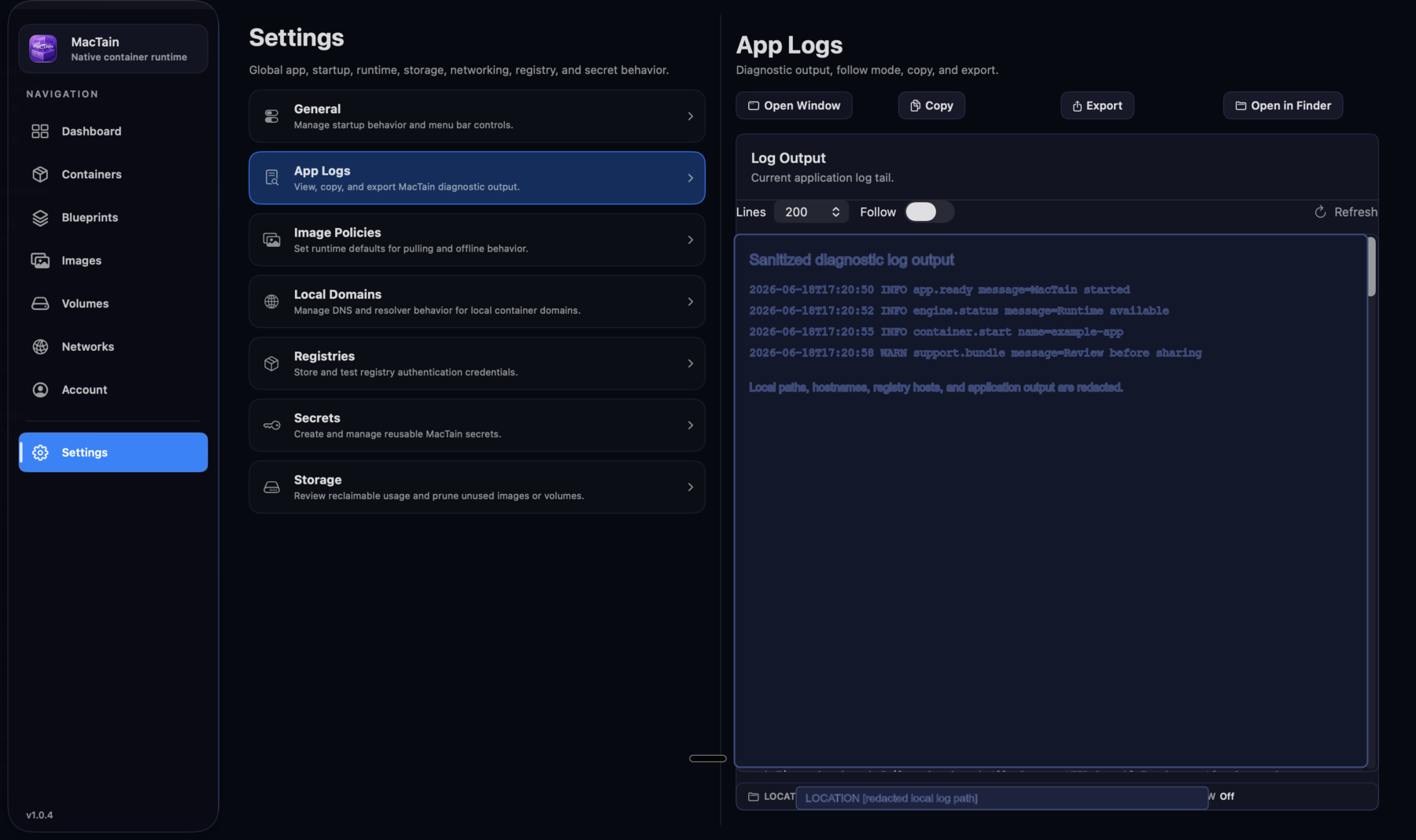
App Logs exposes MacTain diagnostic output with copy, export, refresh, and detached-window actions.
Use App Logs when troubleshooting Engine availability, runtime asset installs, GUI errors, or support requests. Review logs before sharing them because diagnostics can include paths, image names, registry hosts, or application output from your local system.
Settings: Image Policies
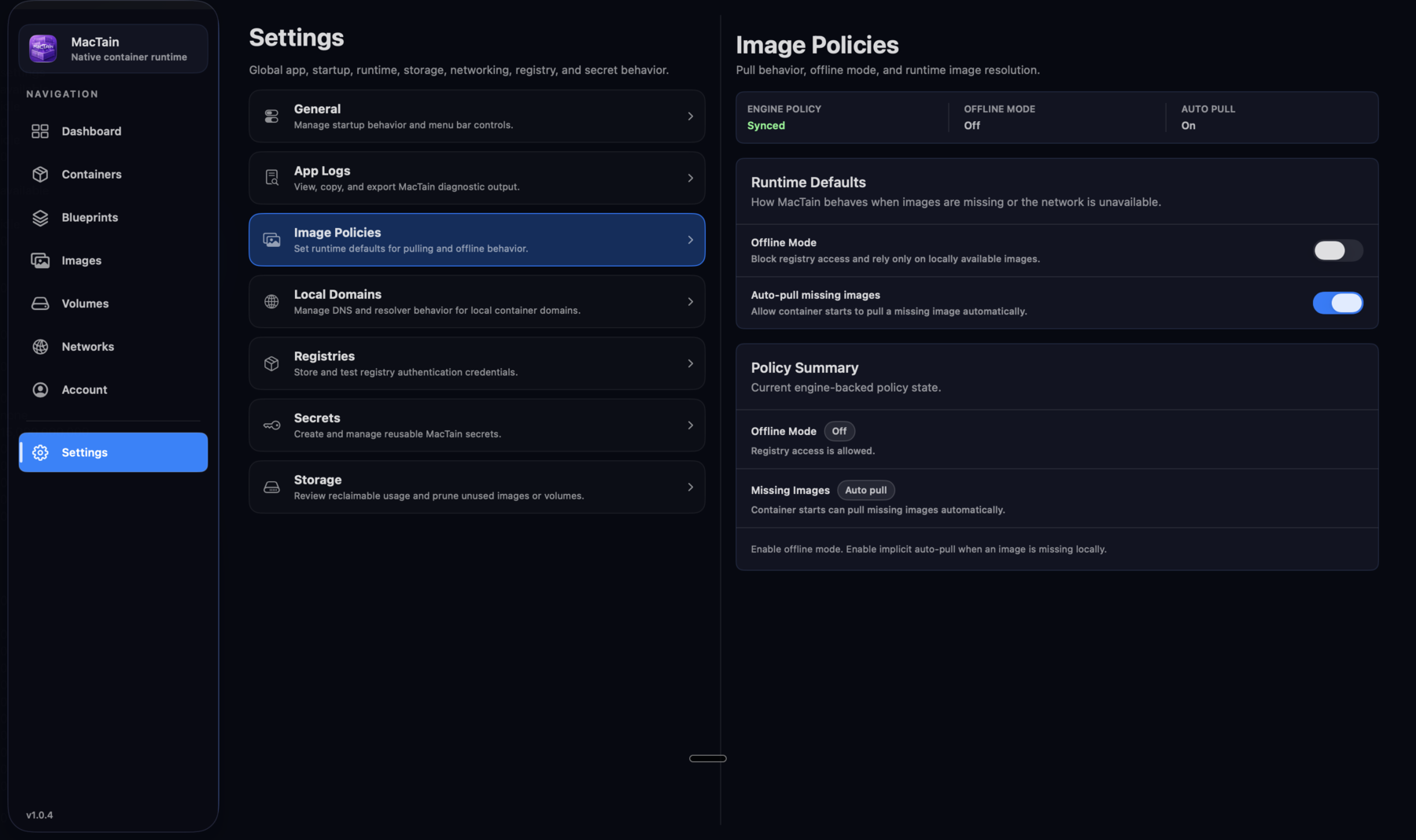
Image Policies define global pull and offline behavior used by container and Blueprint workflows when a more specific setting is not supplied.
Use Image Policies to decide whether MacTain should pull missing images automatically, prefer existing local images, or fail fast when the network or registry is unavailable.
Settings: Local Domains
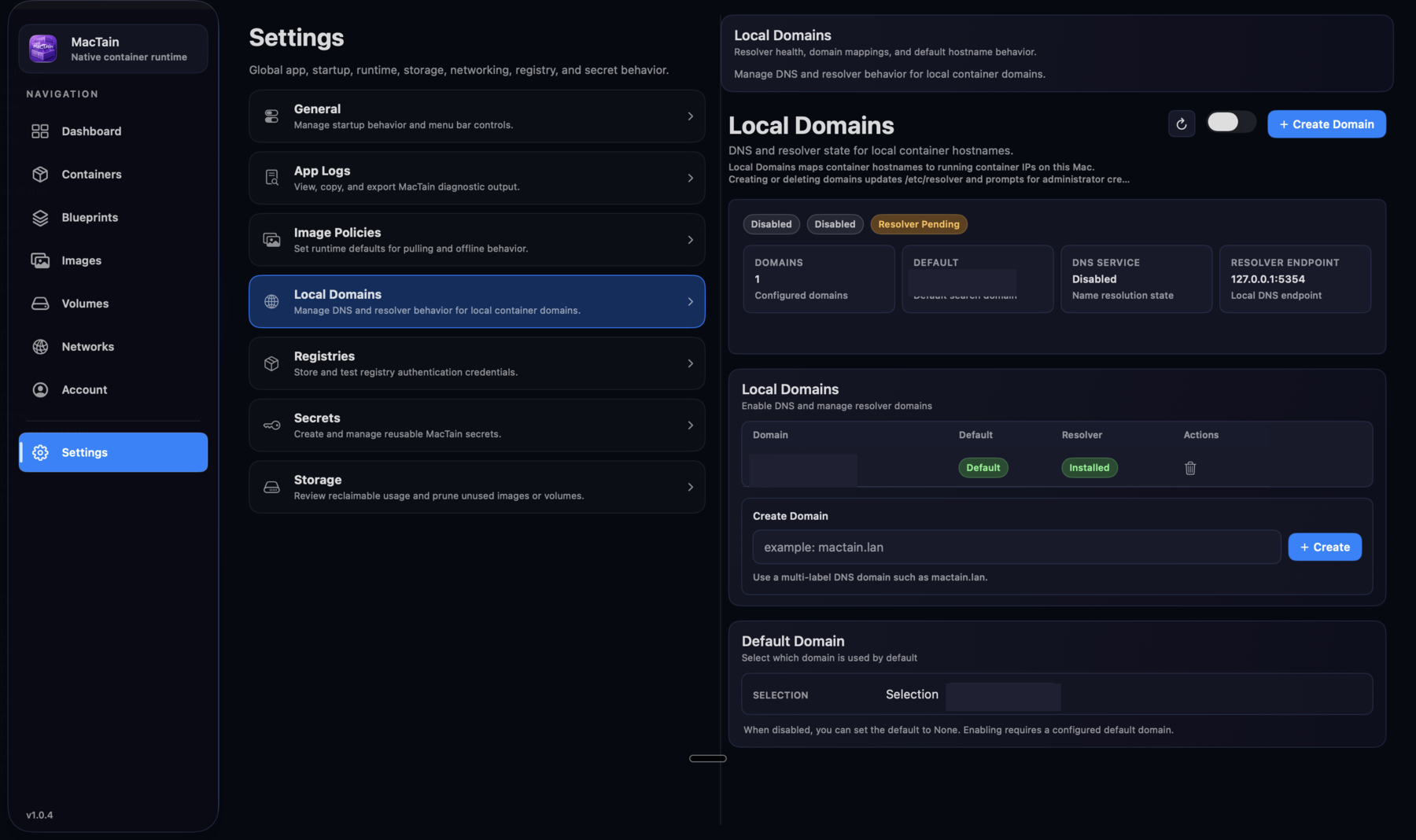
Local Domains manages resolver state and local container hostnames. Domain values in this screenshot are redacted so a development network name is not published.
Use Local Domains when containers should be reachable by local hostnames rather than copied IP addresses. Creating or deleting domains updates local resolver configuration and may require administrator confirmation.
Settings: Registries
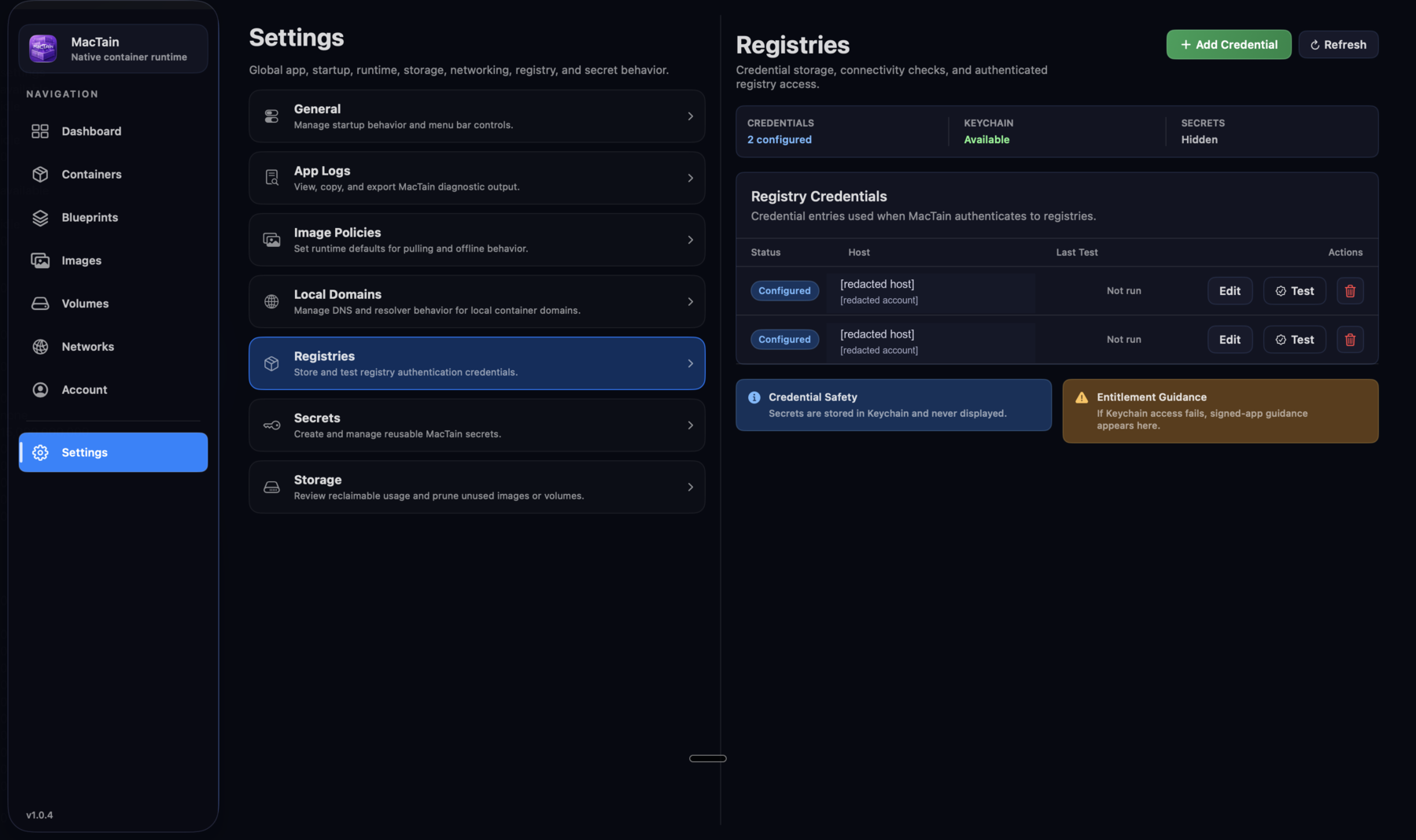
Registries stores host-keyed registry credentials and gives you a test action before the credential is used by image pulls or Blueprint starts.
Use Registries before pulling private images. Store the registry host, account name, and token once, test it, then reference private images normally from containers or Blueprint TOML without putting registry passwords in source.
Settings: Secrets
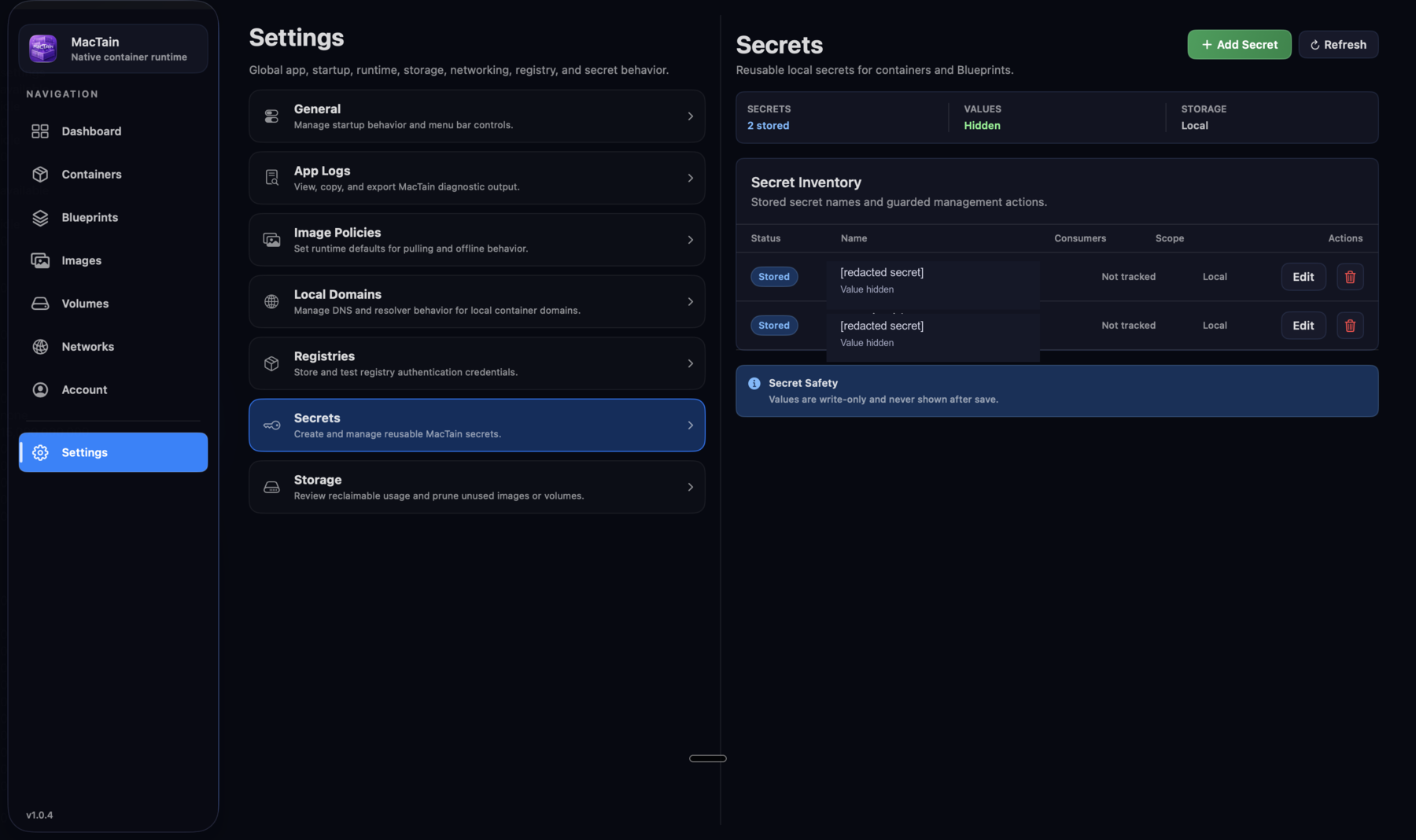
Secrets manages reusable MacTain secrets through native macOS Keychain storage. Secret values are attached to workloads by reference rather than copied into commands or TOML.
Use Secrets for passwords, tokens, API keys, and sensitive runtime values. Create the secret here first, then attach it from Container Settings or Blueprint TOML so the value does not live in shell history or project files.
Settings: Storage
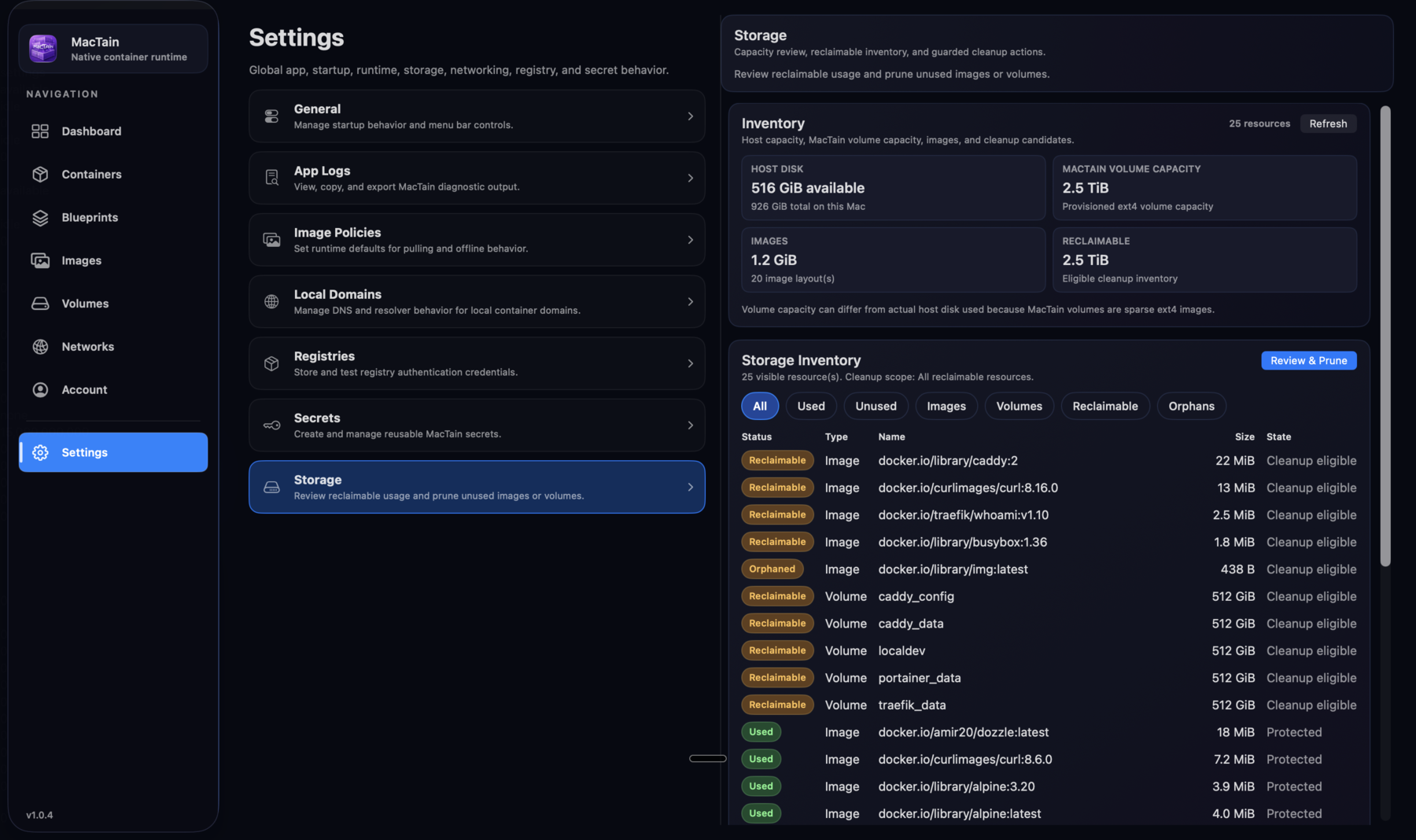
Storage shows reclaimable image and volume usage, groups storage inventory, and provides guarded cleanup actions for unused local resources.
Use Storage when disk usage grows after repeated pulls, builds, Blueprint experiments, or volume-heavy tests. Review the inventory and filters before pruning; cleanup actions should remove only unused resources, not active workload state.
Defaults And Behavior
- The GUI and CLI talk to the same local Engine. A container created in the GUI
can be inspected with
mactain container inspect, and a Blueprint started from the CLI appears in the same runtime model. - Container defaults still apply when the GUI form leaves a value at its
default:
2CPUs,2048MiB memory, themactain-defaultnetwork, autostart off, Docker API access set tonone, health retries set to3, persistent log file size set to1000000bytes, and5retained log files. - In the container form, Save creates or updates the container definition.
Save & Start defines the container and starts it in one flow. That mirrors
MacTain CLI behavior, where
mactain container startcan start an existing container or define and start a new one when create options are supplied. - Remove-after-stop is the GUI form for a one-time container. Use it only when the container should be deleted after it exits. Do not use it for services or containers that own data you still need.
- The menu bar summary refreshes differently depending on how it is being used: the open control center uses the active polling cadence, while the closed menu bar summary uses the idle cadence. This keeps the always-on surface useful without forcing full Dashboard polling all the time.
- The menu bar pinned section is limited to
4pinned containers or Blueprints. It is for frequent actions, not for replacing the full Containers or Blueprints inventories. - Stop All Containers from the menu bar stops running containers after confirmation. It does not quit MacTain and does not stop the Engine.
- The GUI log viewer has two dimensions: Live versus Persisted mode, and Container versus VM log type. Container logs show workload output. VM logs show MacTain Engine and virtual-machine activity associated with the selected container.
- Persisted log viewing depends on retained logging being available for the workload. If logs were not retained, use live logs while the container is running or adjust the container logging settings before the next run.
- Registry credentials and MacTain Secrets are stored through native macOS Keychain-backed flows. Saved secret values are not displayed again after they are stored.
- Runtime asset and Engine banners are blocking attention states. If the app
says runtime assets are missing, installing them from the banner is the GUI
equivalent of running
mactain runtime install. - Logs can contain application output. Review logs before sharing them, and remove credentials, tokens, registry passwords, or private data.
Practical Use Cases
Use case: verify the app is ready after install
Open MacTain from the mounted DMG installer result or from Applications. Start on the Dashboard and confirm that the Engine is available. If the Dashboard shows a runtime assets banner, run the install action from the banner and wait for completion before creating containers.
Use this when a new install opens successfully but containers cannot start yet. If the Engine remains unavailable, continue to Troubleshooting.
Use case: control MacTain from the menu bar
Keep MacTain running in the menu bar when you want a persistent control center. Use the status badge and Engine summary for a quick health check, open the Dashboard when you need the full view, and pin the containers or Blueprints you touch most often so they can be opened, started, stopped, or restarted without navigating the main window.
Use Stop All Containers before shutdown, travel, or maintenance when all workloads should stop but the Engine can remain available. Use Quit MacTain only when you want the app itself to exit.
Use case: inspect container and VM logs from the GUI
Open the container, choose Logs, then start with Live and Container to see the workload's current stdout and stderr. Search for the failing route, error string, or health-check output. Use Pause before copying if the container is writing frequently.
Switch Log Type to VM when the application output does not explain the problem. VM activity shows Engine and virtual-machine context such as lifecycle, runtime, network, console, and resource events for the selected container. Use the filter button to narrow by channel or severity, then copy or download only the relevant excerpt.
Use Persisted when you enabled retained logs and need to inspect current or rotated log files after a restart or exit. If no persisted logs are available, the useful next step is to enable retained logging for that container and reproduce the issue.
Use case: create and start a service container
Open Containers and create a new container. In Container Settings, set the name, image, command if needed, port mappings, mounts, environment, secrets, resources, logging, and health checks. Use Save when you only want to define the container. Use Save & Start when you want to define it and immediately start it.
Use this for long-running services that you expect to stop and start again. After it starts, open logs or files from the container row or detail view.
Use case: run a one-time container
Open Containers, create a new container from a utility image, set the command you want to run, enable remove-after-stop in the lifecycle settings, and start it. The container definition is removed after the process exits.
Use this for short diagnostics, migration checks, or utility commands where the container should not remain in the inventory.
Use case: attach host files or durable storage
Open Containers, create or edit a container, then use the Mounts section. Use a bind mount when the container needs files from a known host directory. Use a named volume when the data should outlive a container definition and stay managed by MacTain. Use tmpfs for disposable in-memory data.
Use bind mounts for local development files. Use named volumes for app state, databases, and anything you plan to back up or restore.
Use case: add private registry access
Open Settings > Registries, add the registry host, username, and token or password, then test the credential. After the test passes, image pulls and Blueprint starts can use that registry host without embedding credentials in commands or TOML files.
Use this before pulling private images or starting Blueprints that reference private image names.
Use case: create a secret and attach it to a workload
Open Settings > Secrets, create a named secret, then reference that existing secret from a container form or Blueprint TOML. The GUI stores the value through MacTain's Keychain-backed secret storage; workloads receive the secret through the attachment you configure, not through plaintext docs or source files.
Use this for passwords, tokens, and runtime values that should not live in Blueprint TOML, shell history, or project repositories.
Use case: edit and run a Blueprint stack
Open Blueprints, add or open a Blueprint TOML file, review diagnostics in the editor, and start the Blueprint when validation is clean. Use Settings or smart-token insertion helpers for common TOML sections, but keep the TOML file as the source of truth for the stack.
Use this when a set of services needs to start together, share networks or volumes, or carry environment-specific defaults.
Use case: troubleshoot from the GUI
Use the Dashboard and Operations panel for high-level status, then open container logs, app logs, or storage review from the relevant area. If support asks for terminal output, use the CLI reference and redact secrets before sharing.
Use this when the GUI shows an Engine unavailable state, a failed runtime asset install, a container that exits unexpectedly, or a storage warning.
Next Steps
- New users should continue to Run your first container.
- Users planning repeatable stacks should continue to Blueprints.
- Users who need automation should use CLI reference.