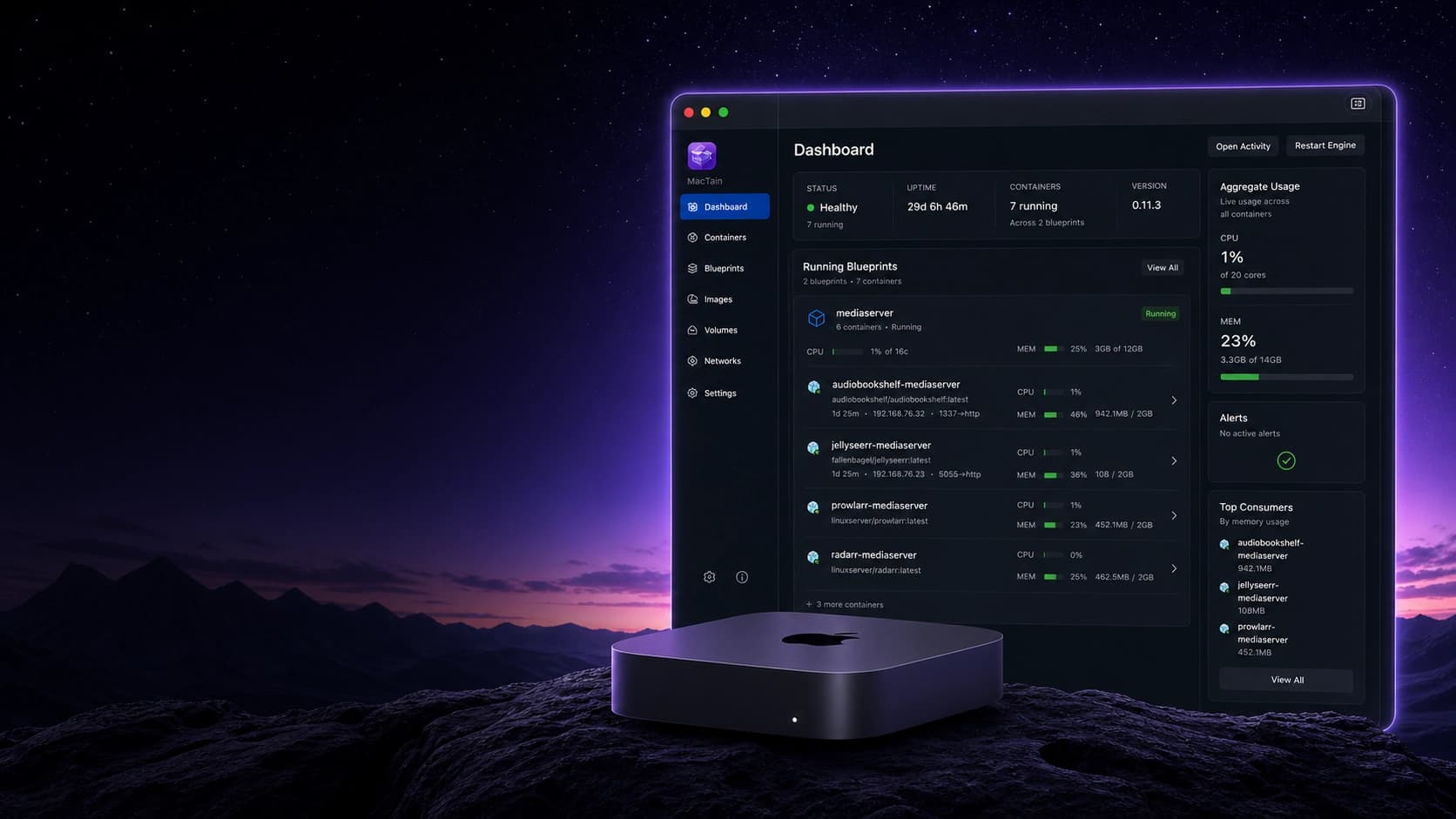

Resource Management
Resource management covers runtime assets, container CPU and memory flags, image storage, volume storage, and cleanup checks.
Command Reference
| Command | Description | Typical use |
|---|---|---|
mactain runtime install | Installs or updates runtime assets. | Prepare the host for containers or recover from missing assets. |
mactain runtime rollback [asset] --to previous | Rolls back all runtime assets or one named asset such as kernel, initfs, or tini. | Recover after a bad runtime asset update. |
mactain container stats [name] | Shows container resource telemetry. | Decide whether CPU or memory allocation should change. |
mactain container create --cpus <n> --memory-mib <m> | Defines resource allocation. | Set CPU and memory when creating a container. |
mactain container start --name ... --cpus <n> --memory-mib <m> | Defines and starts a new container with explicit resource allocation. | Use MacTain's create-and-start path with non-default resources. |
mactain system storage reclaimable | Reports reclaimable disk space. | Review cleanup opportunity before deleting anything. |
mactain image list | Lists local images. | Find image inventory that may consume disk. |
mactain image delete <reference> | Deletes a local image. | Remove unused image inventory after inspection. |
mactain volume list | Lists volumes. | Find persistent storage inventory. |
mactain volume backup <name> | Creates a backup archive. | Protect durable data before cleanup or restore testing. |
mactain volume prune | Prunes unused volumes. | Clean up storage only after confirming it is unused. |
Defaults And Behavior
- Runtime assets include the kernel, initfs, and
tini; see Runtime assets for first-run details. - New containers default to
2CPUs and2048MiB unless you pass explicit resource flags. - Resource allocation is a define-time container setting; recreate the container to change it.
system storage reclaimableis a report, not a cleanup command.- Inspect images and volumes before deleting resources used by current workflows.
- Image deletion removes local image inventory, but does not remove registry images.
- Volume deletion and pruning affect persistent data. Back up volumes before cleanup when the data matters.
- Build resource flags use
--cpuand--memory; container resource flags use--cpusand--memory-mib.
Runtime Assets
Runtime assets are local artifacts required to run containers: the kernel,
initfs.ext4, and tini.
mactain runtime install
mactain runtime rollback --help
Container Resources
Container create/start help includes CPU and memory options for defining new containers. Use command help for the exact units and accepted values in your installed release.
mactain container create --help
mactain container start --help
Storage And Cleanup
mactain system storage reclaimable
mactain image list
mactain volume list
Use these commands to understand reclaimable storage before deleting images, volumes, or other local resources.
Practical Use Cases
Use case: install or refresh runtime assets before running containers
Use this when container start reports missing runtime assets or after an update that changes runtime requirements.
mactain runtime install
mactain engine status
If runtime setup still fails, collect Engine status and logs before retrying other container commands.
Use case: size a container before creating it
Use this when a workload needs more or less CPU or memory than the defaults.
mactain container create \
  --name worker \
  --image ghcr.io/acme/worker:latest \
  --cpus 4 \
  --memory-mib 4096
mactain container start worker
Use command help to confirm units and defaults for your installed release.
Use case: define and start a constrained one-off worker
Use this for a short-lived job that should not consume the default resources or leave a stopped container definition behind.
mactain container start \
  --name import-job \
  --image ghcr.io/acme/importer:latest \
  --cpus 1 \
  --memory-mib 1024 \
  --remove
MacTain's container start can define and start a new container when --name
and --image are provided. --remove removes that container after it stops.
Use case: check reclaimable storage before cleanup
Use this when local images, volumes, or runtime artifacts may be consuming space.
mactain system storage reclaimable
mactain image list --json
Treat reclaimable storage as a signal for review. Inspect images and volumes before deleting anything needed by a workflow.
Use case: clean up unused image inventory
Use this after confirming an image is not needed by an active container, Blueprint, or rollback workflow.
mactain image list
mactain image delete ghcr.io/acme/app:old
Delete only local images you can rebuild or pull again.
Use case: protect volume data before cleanup
Use this before pruning or replacing a workflow that owns durable data.
mactain volume list
mactain volume backup media-cache --output ./media-cache-backup.tar
mactain volume prune
Use volume inspect when you are unsure whether a workflow still references a
volume.
Next Steps
Continue to Troubleshooting for symptoms and diagnostic commands.