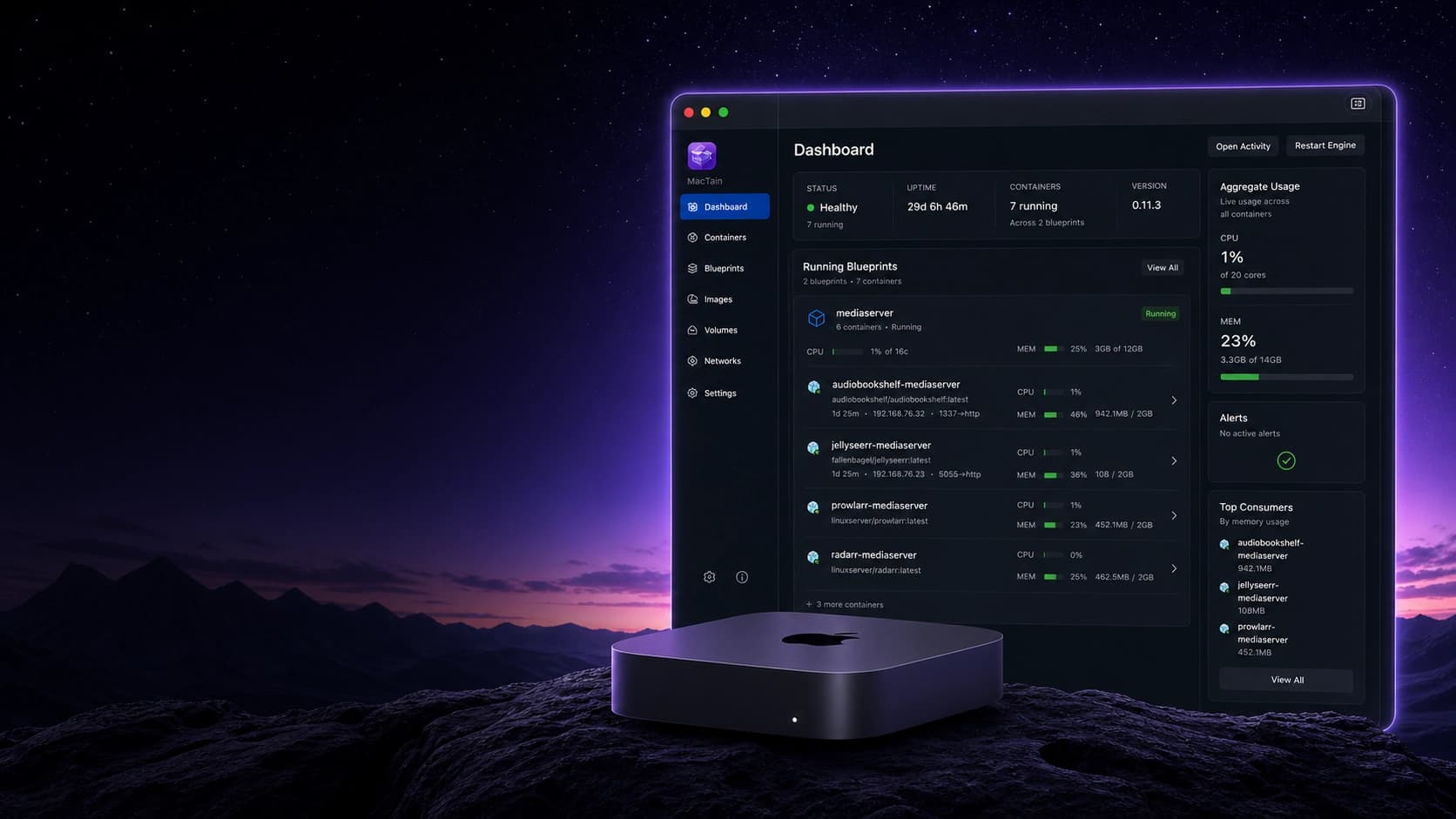

Installation
MacTain's primary public install artifact is a DMG. The DMG contains
MacTain.app; the app provides the guided first-run install path and the CLI
shim expected at /usr/local/bin/mactain.
Before You Install
- Use an Apple Silicon Mac running a supported macOS release for the MacTain build you are installing.
- Download the approved MacTain DMG for your release channel.
- Keep
MacTain.appin/Applicationsunless the release instructions for your channel say otherwise. - Close and reopen Terminal after installation so your shell can discover the CLI shim.
Install MacTain
- Open the downloaded
.dmgfile to mount it in Finder. - Drag
MacTain.appinto/Applications. - Open
/Applications/MacTain.app. - Follow the guided install prompts shown by the app.
- Open a new Terminal window.
- Confirm the CLI is available with
mactain --help.
If macOS blocks the app, confirm you downloaded the expected signed release artifact for your channel before bypassing any security warning.
Command Reference
Installation is mostly a Finder and app-guided workflow, but these CLI commands are the first checks after installation:
| Command | Description |
|---|---|
mactain --help | Confirms the CLI shim is reachable from the current shell. |
mactain --version | Prints the installed CLI version. |
mactain engine status | Confirms the per-user Engine can be reached. |
mactain runtime install | Installs runtime assets required to run containers. |
mactain system logs --lines 200 | Shows a bounded recent MacTain log sample when install or first-run checks fail. |
Defaults And Behavior
- The public install path is DMG-first.
- The release package artifact is secondary and intended for enterprise/admin deployment validation, not the normal public install path.
- The CLI shim is expected at
/usr/local/bin/mactain. - The Engine is a per-user background service, so each macOS user has separate Engine state.
- Runtime assets are stored under the user's MacTain runtime root by default; see Runtime assets before running containers.
Engine And Runtime
The CLI exposes Engine and runtime setup commands:
mactain engine status
mactain runtime install
The Engine is the background service that performs container operations. Runtime assets are local artifacts required to run containers.
Practical Use Cases
Use case: confirm the DMG install worked
Use this after dragging the app to /Applications and completing the guided
install.
command -v mactain
mactain --help
mactain engine status
If command -v mactain prints nothing, open a new Terminal window and check
again. If /usr/local/bin/mactain does not exist, reopen MacTain.app and
complete the guided install.
Use case: prepare the runtime for the first container
Use this before starting your first container or when a container command reports missing runtime assets.
mactain runtime install
mactain engine status
Continue to Runtime assets for the explanation of what this installs and when rollback is useful.
Next Steps
Continue with Verify installation and Runtime assets before running a container.